Flash F&T Firmware
- ESP32 Flash Firmware
- nRF52840 Flash Firmware
Follow the steps below to flash the F&T firmware:
-
Connect the device to your computer using a USB cable.
-
Enter Bootloader mode: Press and hold the USER or PRG button, then press and release the RST button, and finally release the USER or PRG button. The device will enter Bootloader mode and become ready for firmware flashing.
After entering Boot mode, the serial port number may change, so remember to reselect the port.
-
Open the firmware flashing page: https://devremote.heltec.org/
-
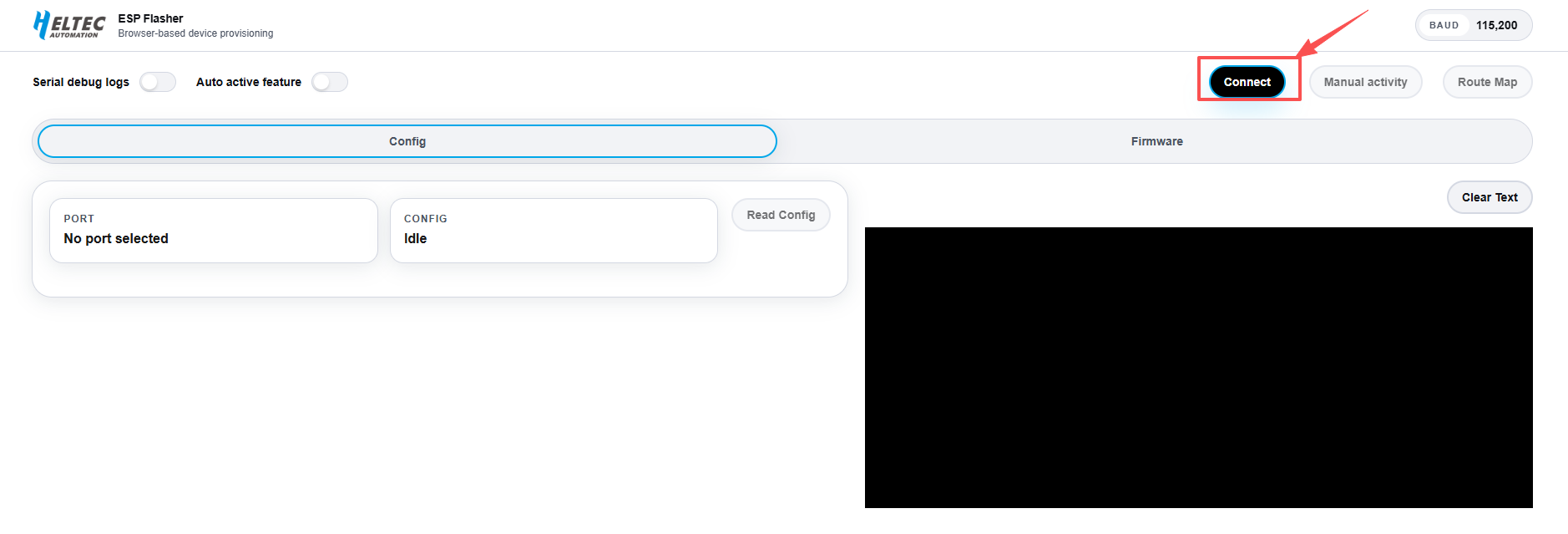
Click Connect.
-
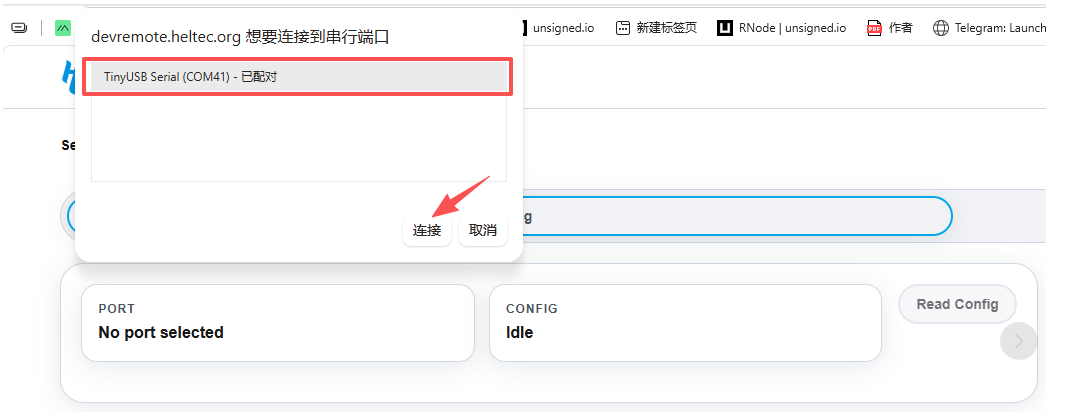
Select the corresponding COM port, then click Connect again.
Once the device is successfully connected, the connection status will be displayed on the right side of the page.
-
Configure the flashing options:
- Project: Select F&T.
- Device: Select the corresponding device model.
- Connection Type: Select the connection method WiFi, Bluetooth, or USB.
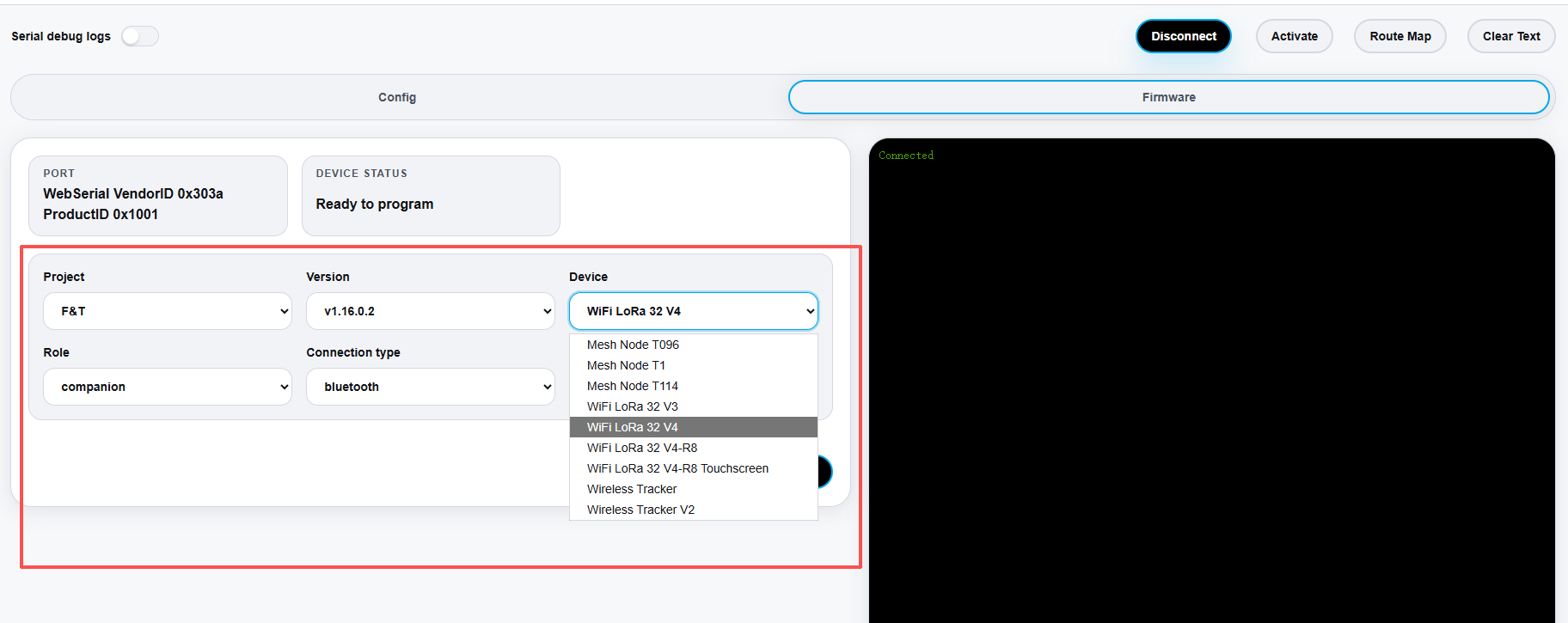
Currently, F&T is the only available project. More open-source projects may be added in the future.
-
After completing the configuration:
Click Erase Flash-->Click Program Firmware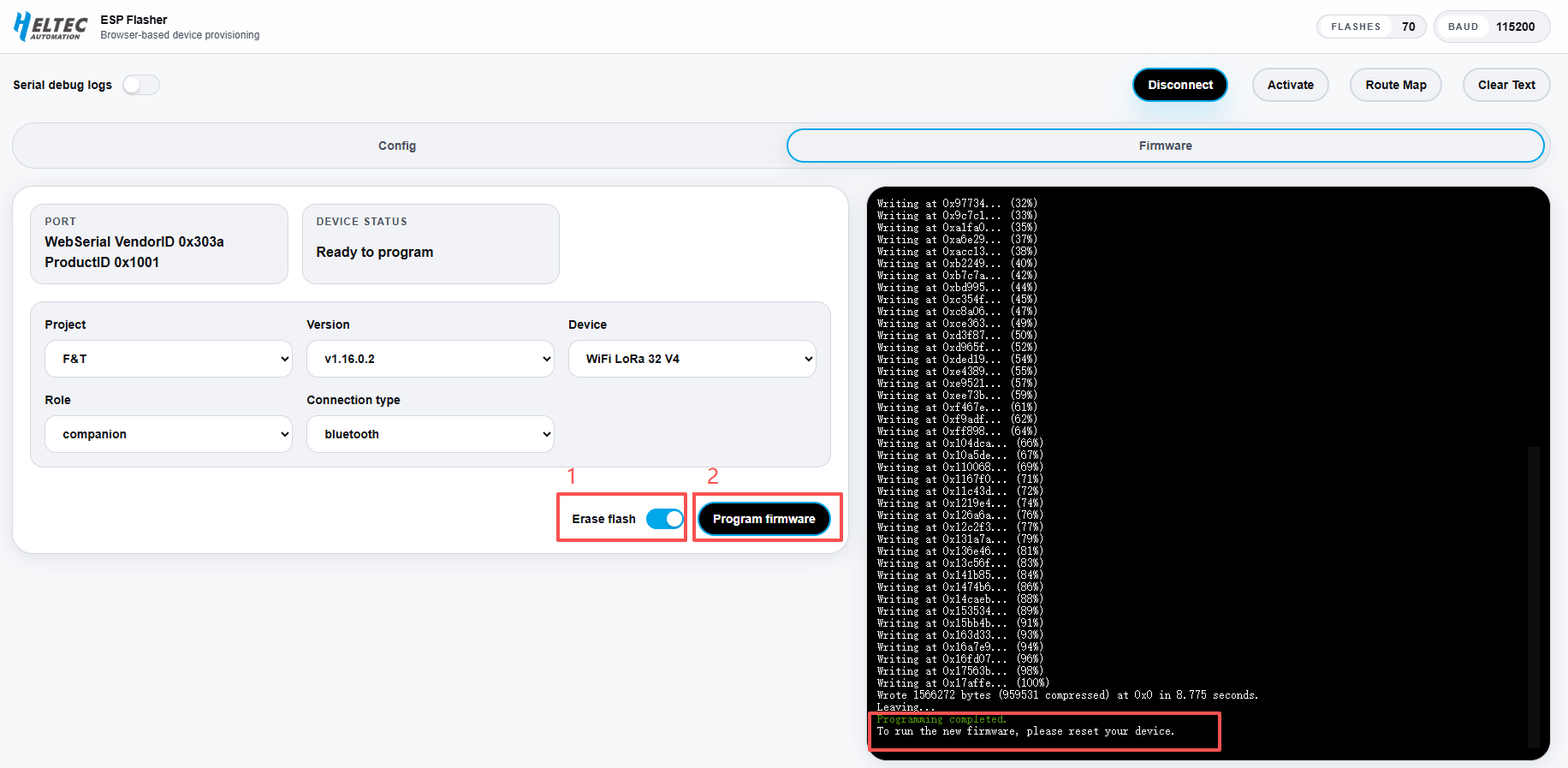
The tool will automatically complete the firmware flashing process. Once the flashing process is completed successfully, press the RST button once to restart the device.
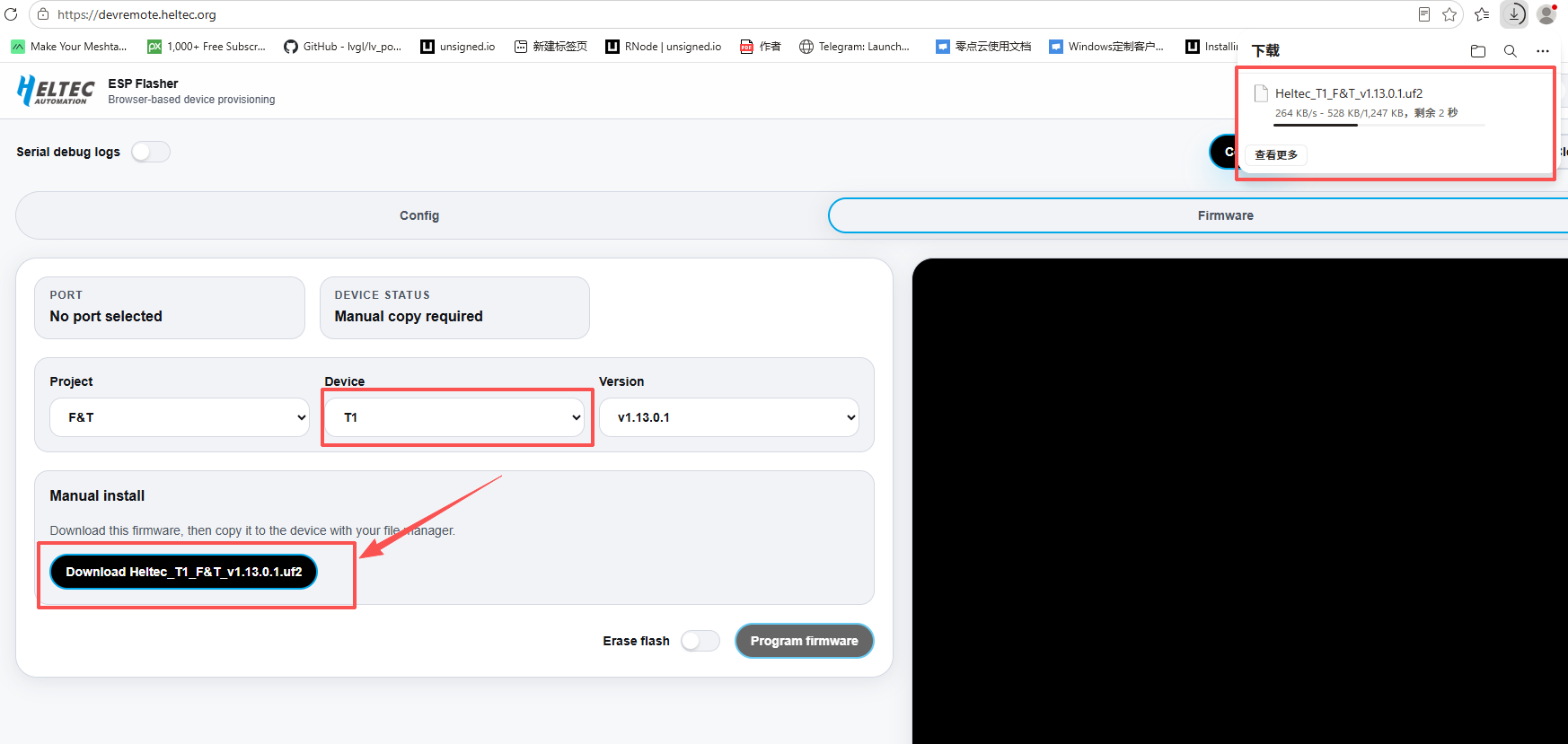
1.Open the Heltec Device Remote platform: https://devremote.heltec.org/
2.Select the nRF device from the device list, then click Download Firmware.
-
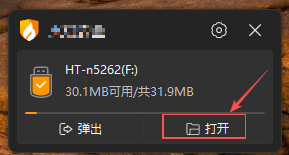
Connect the device to your computer via a USB cable, then Double-Press the designated button to enter DFU Mode. Once in DFU mode, the device will be recognized by the computer as a storage device.
- Mesh Node T1: Double-press the Power Button.
- Mesh Node T114 / T096: Double-press the RST button.
-
Copy the downloaded the F&T Firmware File to the device storage.
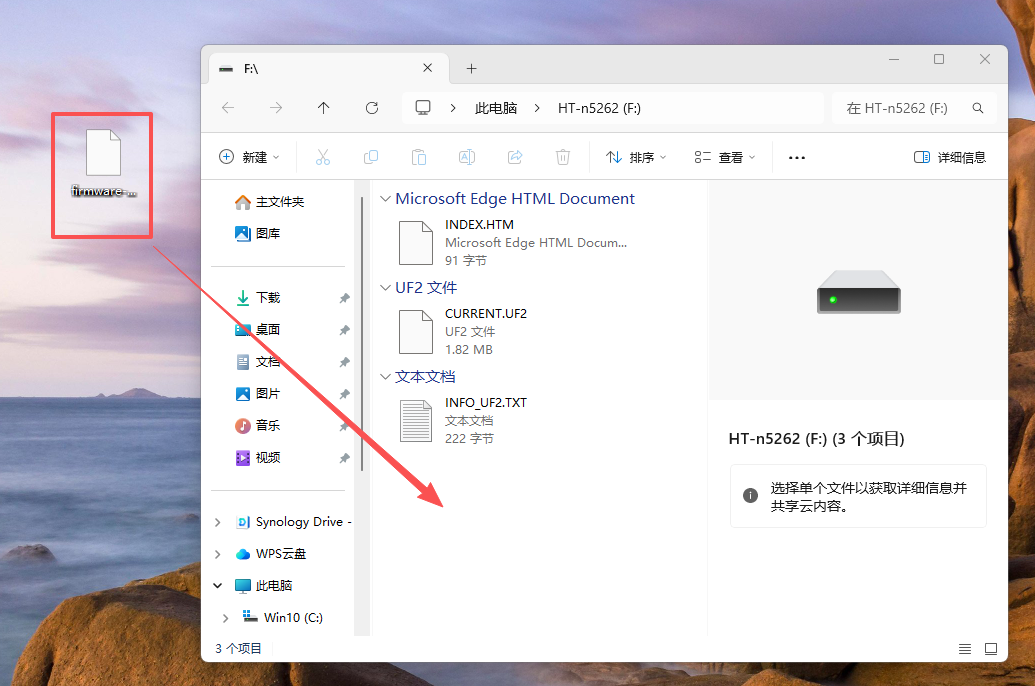
- After the file transfer is completed, the device will automatically restart and complete the firmware flashing process.
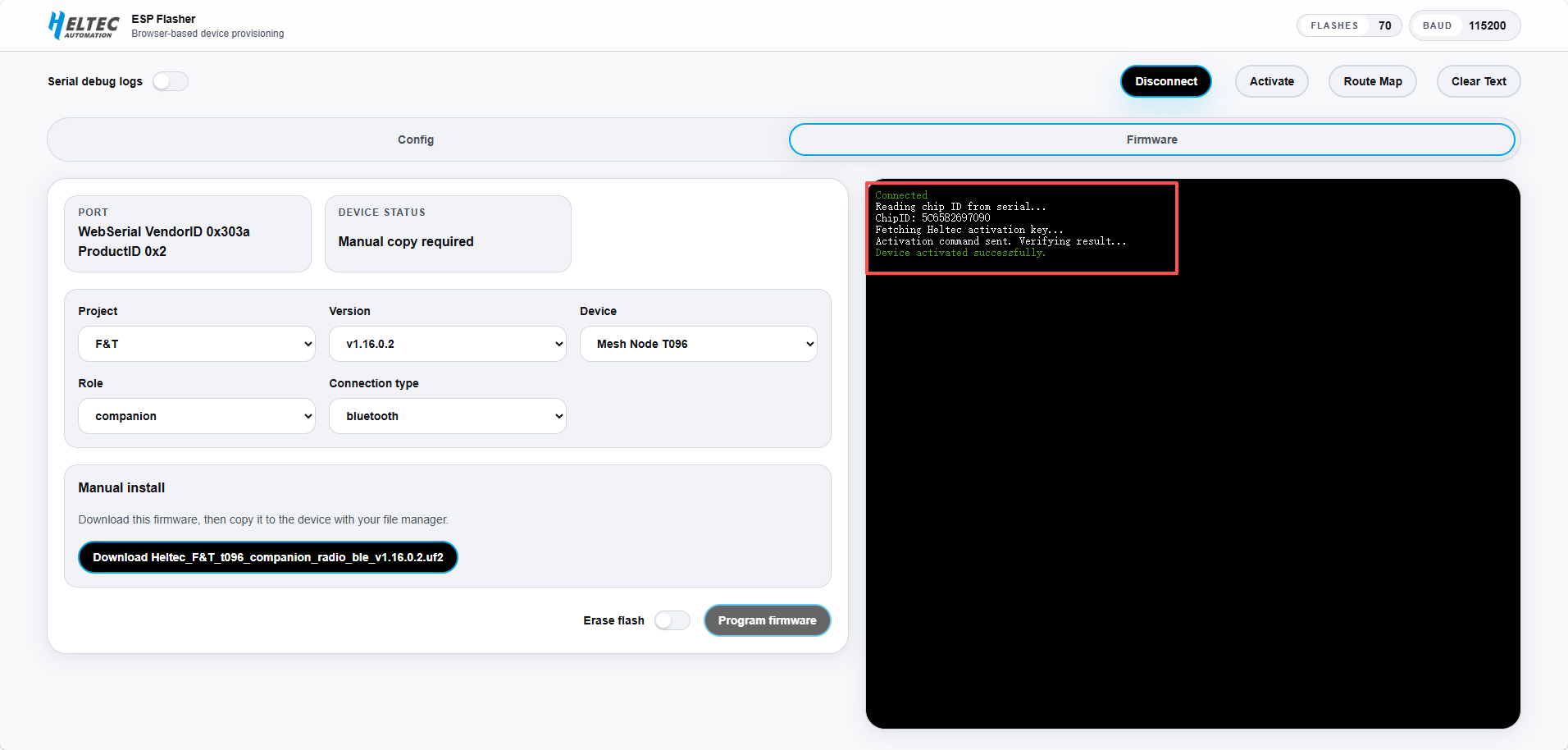
After flashing the F&T firmware, the device must be activated through the Device Remote platform before use.
Activate the Device
Please follow the steps below to activate the device:
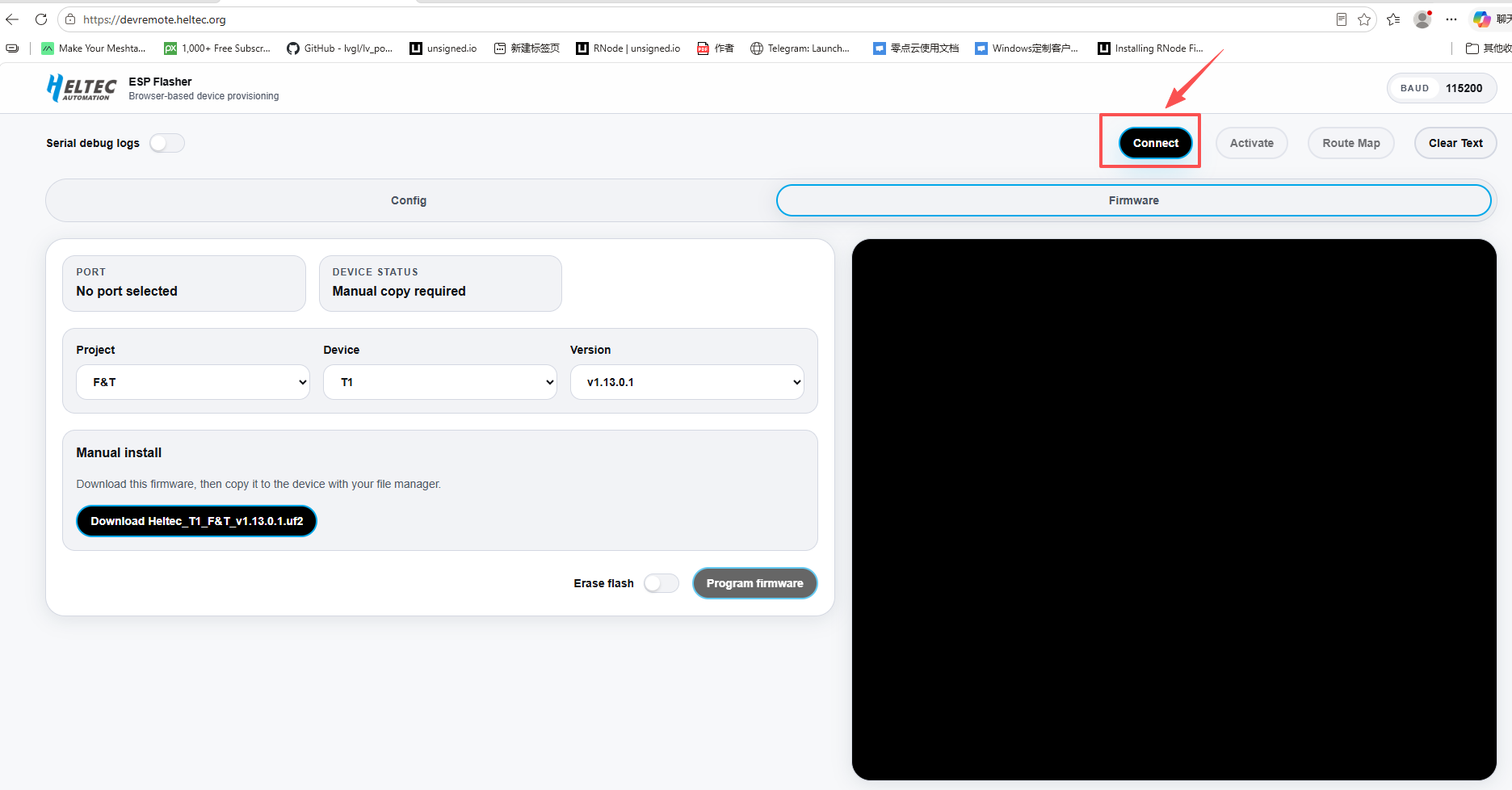
- On the Device Remote page, click Connect.
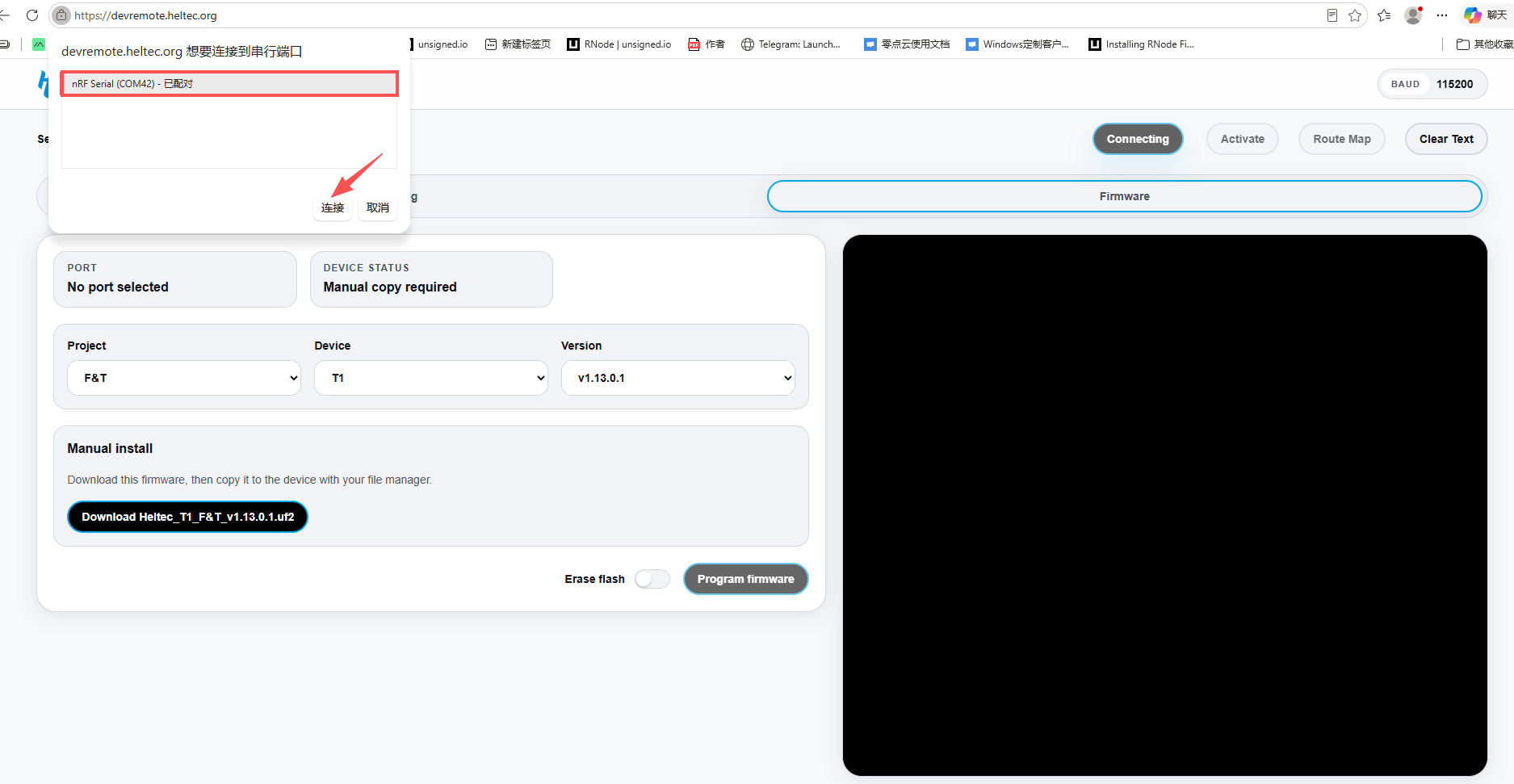
- Select the corresponding serial port and click Connect.
- After the connection is established, click Activate.
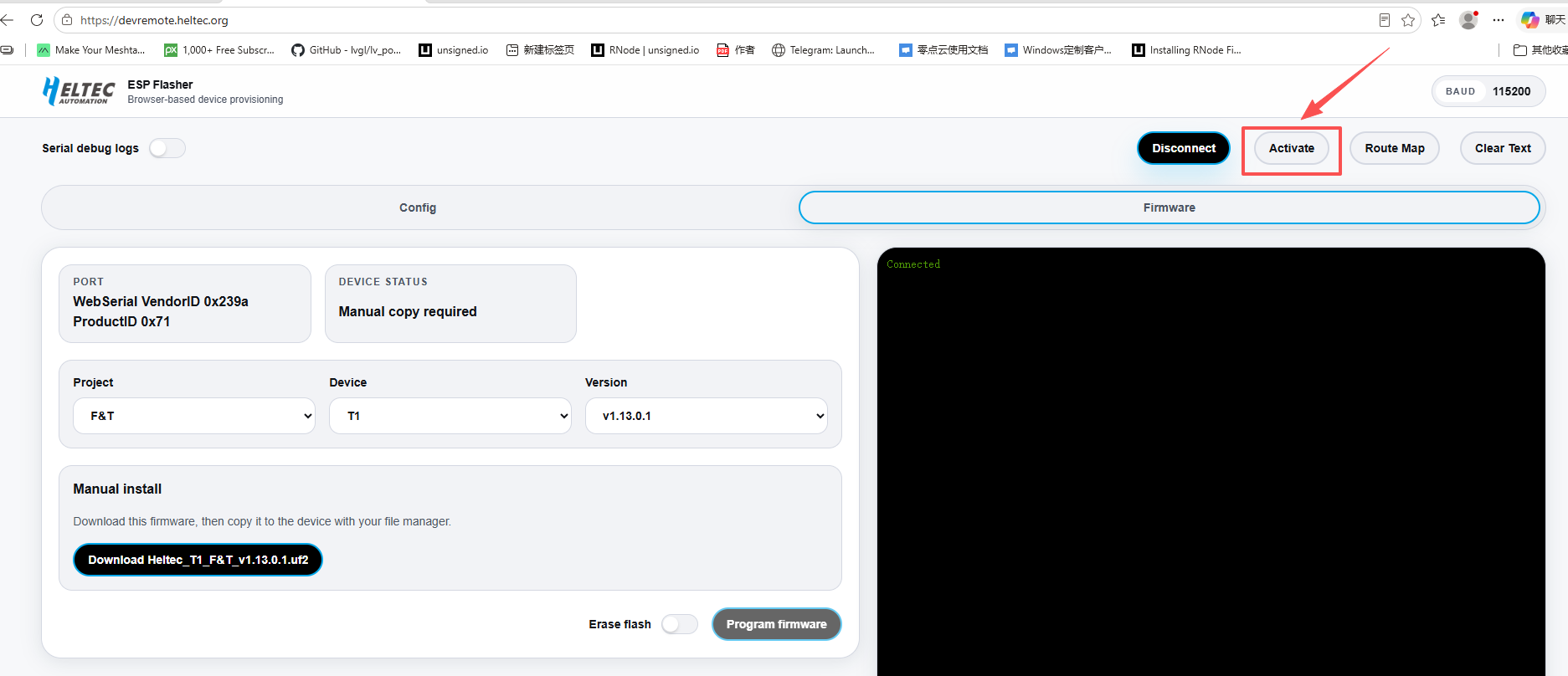
4.The device will be activated automatically. Once activated, the device is ready to use the F&T system.