How to Node Register on Snapemu
Taking Heltec WiFi LoRa 32 V3 connected to Snapemu as an example
Register a LoRa Node on Snapemu
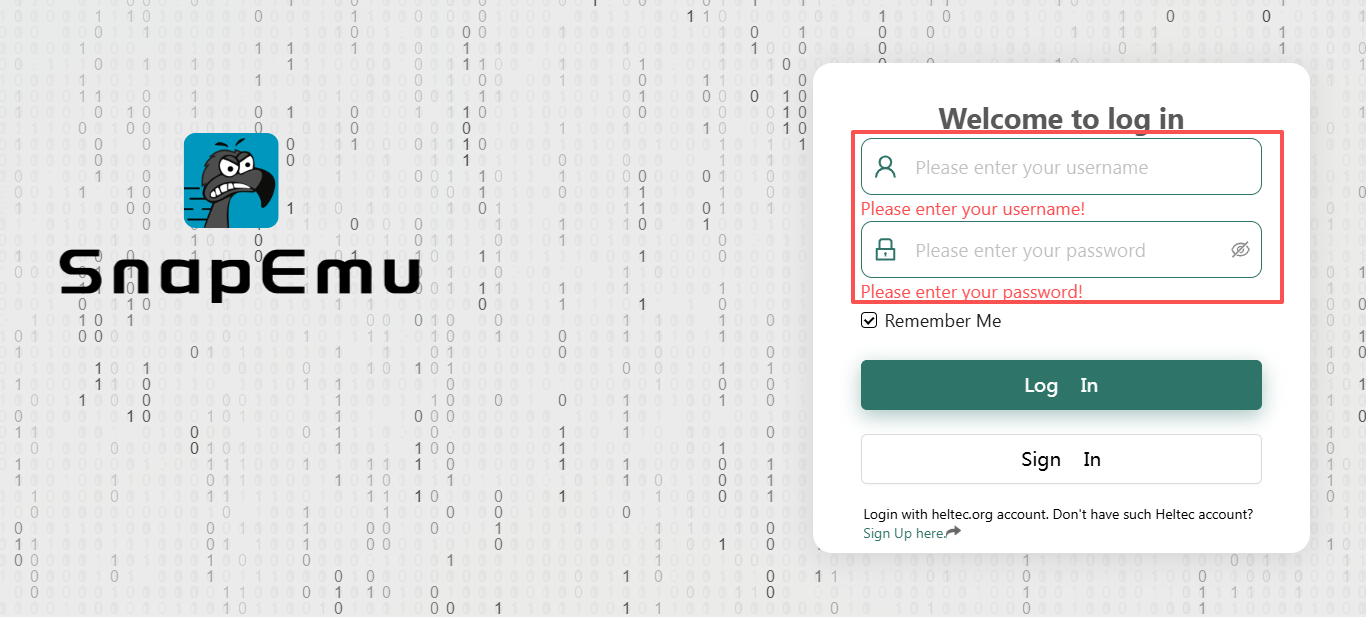
User log in to Snapemu by using their Heltec website account.
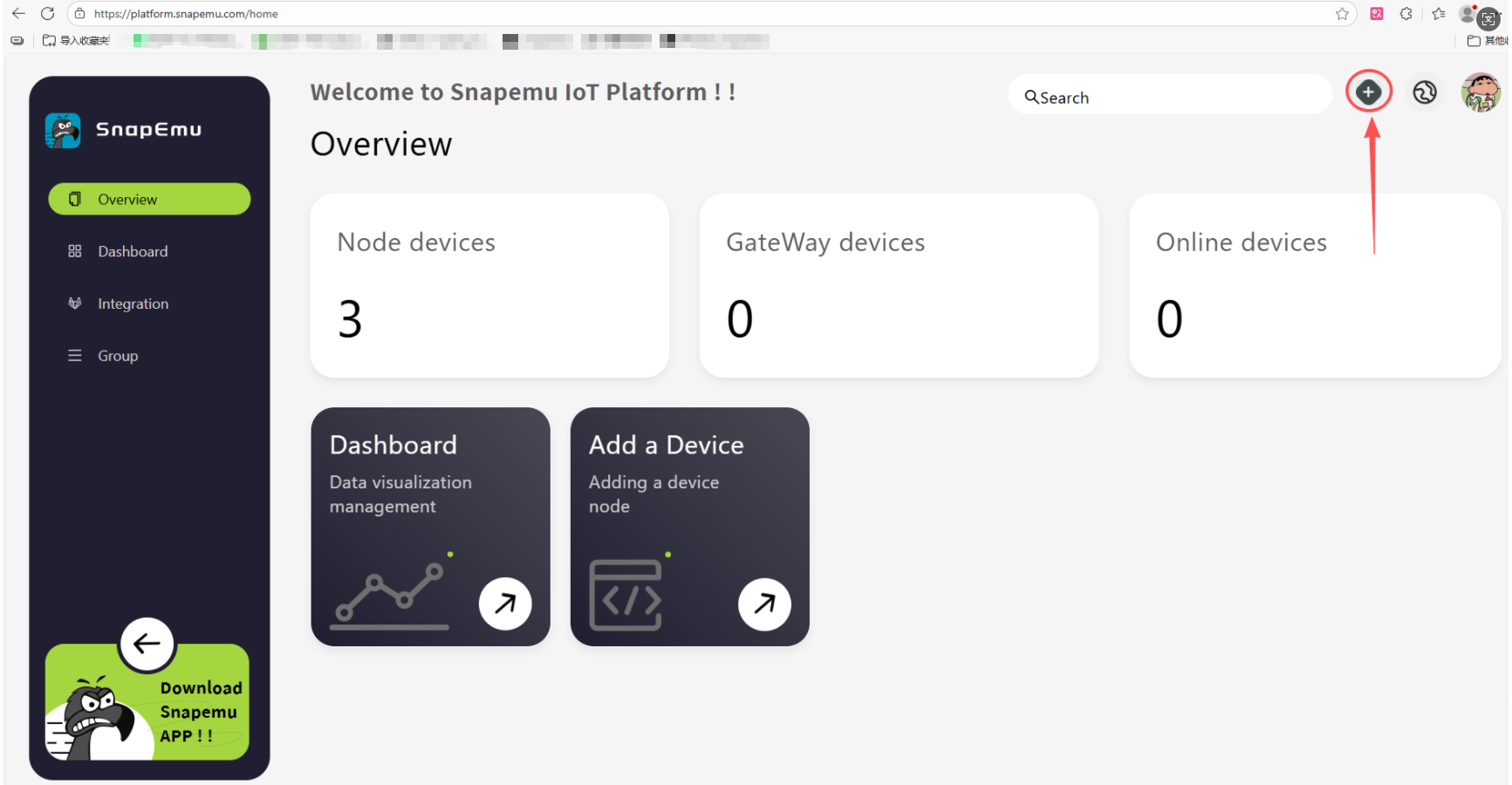
After the user successfully logs in, this interface will be displayed. Click to +.
Select device type and fill in configuration information on this interface.
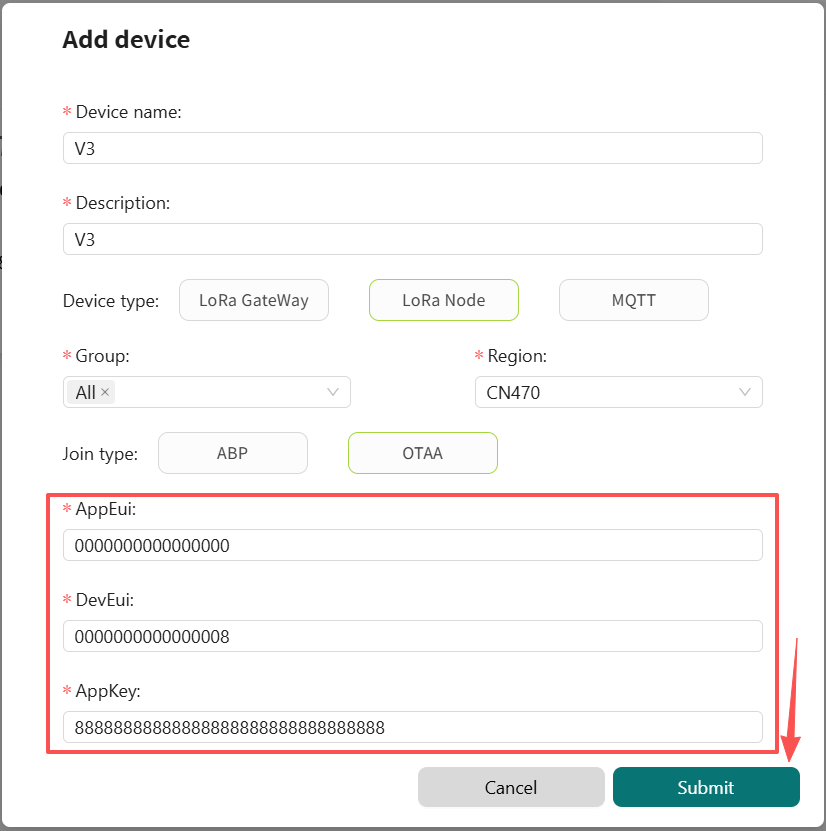
device nameanddescriptioncan be filled in freely, and they will become the name and remark of the device displayed on the platform.groupdenotes the grouping of the device on SnapEmu.Device typeThis device is a node, so choose "LoRaNode".RegionMatch the frequency band of the LoRaNode.jointypeAll choose OTAA modeAppeuiandDeveuiandAppKeyneed to match the LoRaWAN code, which can be customized by the user. When registering, only the numerical value needs to be filled in.
tip
- During node registration, make sure that the AppEUI, DevEUI, and AppKey are identical to those defined in the LoRaWAN code.
- The node’s Region setting matches the Region configured on the gateway.

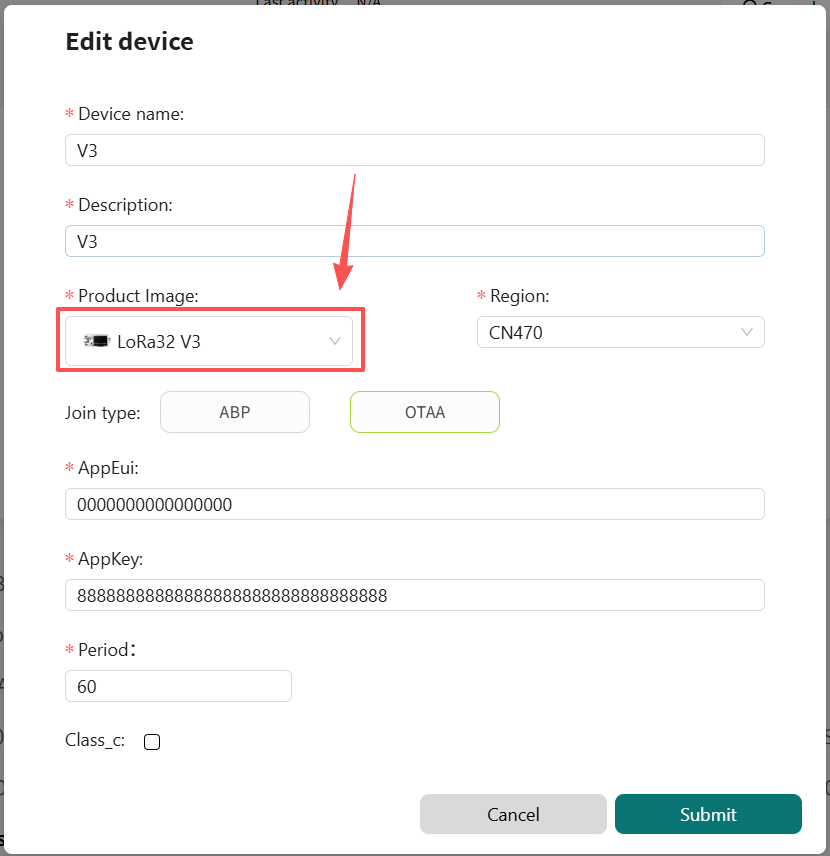
After running the lorawan code, the device will be automatically activated, and if everything goes smoothly, it will be as shown in the figure. Then click here to select the corresponding product image.