ESP32 F&T Quick Start
F&T is a MeshCore-based communication firmware system designed for long-range, decentralized device-to-device communication. It enables peer-to-peer messaging, GPS-based location sharing, and basic device status management through a simple and intuitive user interface.
Flash F&T Firmware
Follow the steps below to flash the F&T firmware:
-
Connect the device to your computer using a USB cable.
-
Enter Bootloader mode: Press and hold the PRG button, then press and release the RST button, and finally release the PRG button. The device will enter Bootloader mode and become ready for firmware flashing.
-
Open the firmware flashing page: https://devremote.heltec.org/
-
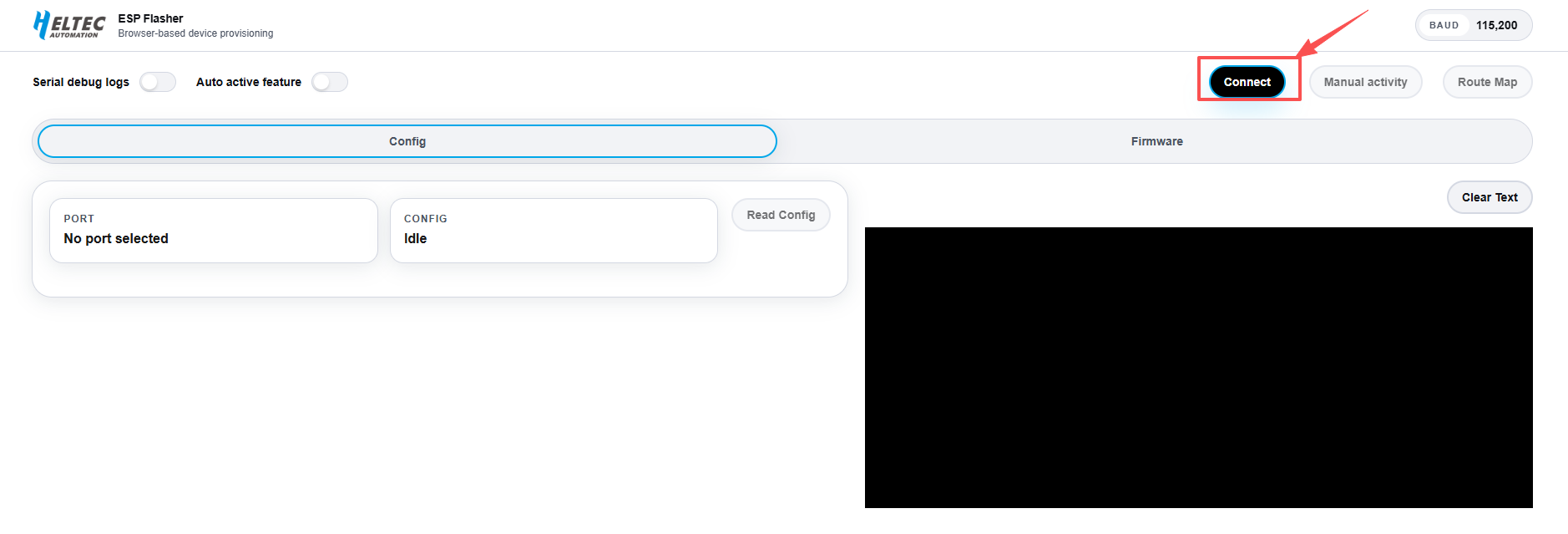
Click Connect.
-
Select the corresponding COM port, then click Connect again.
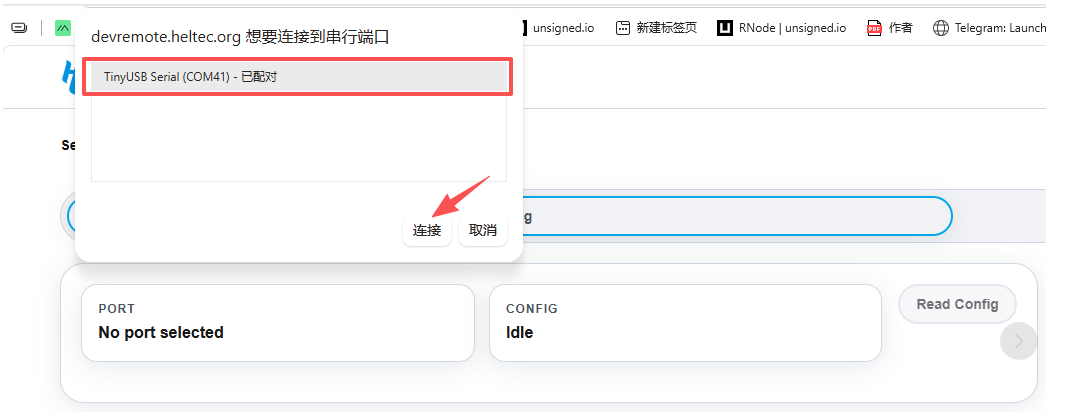
Once the device is successfully connected, the connection status will be displayed on the right side of the page.
-
Configure the flashing options:
- Project: Select F&T.
- Device: Select the corresponding device model.
- Connection Type: Select the connection method WiFi, Bluetooth, or USB.
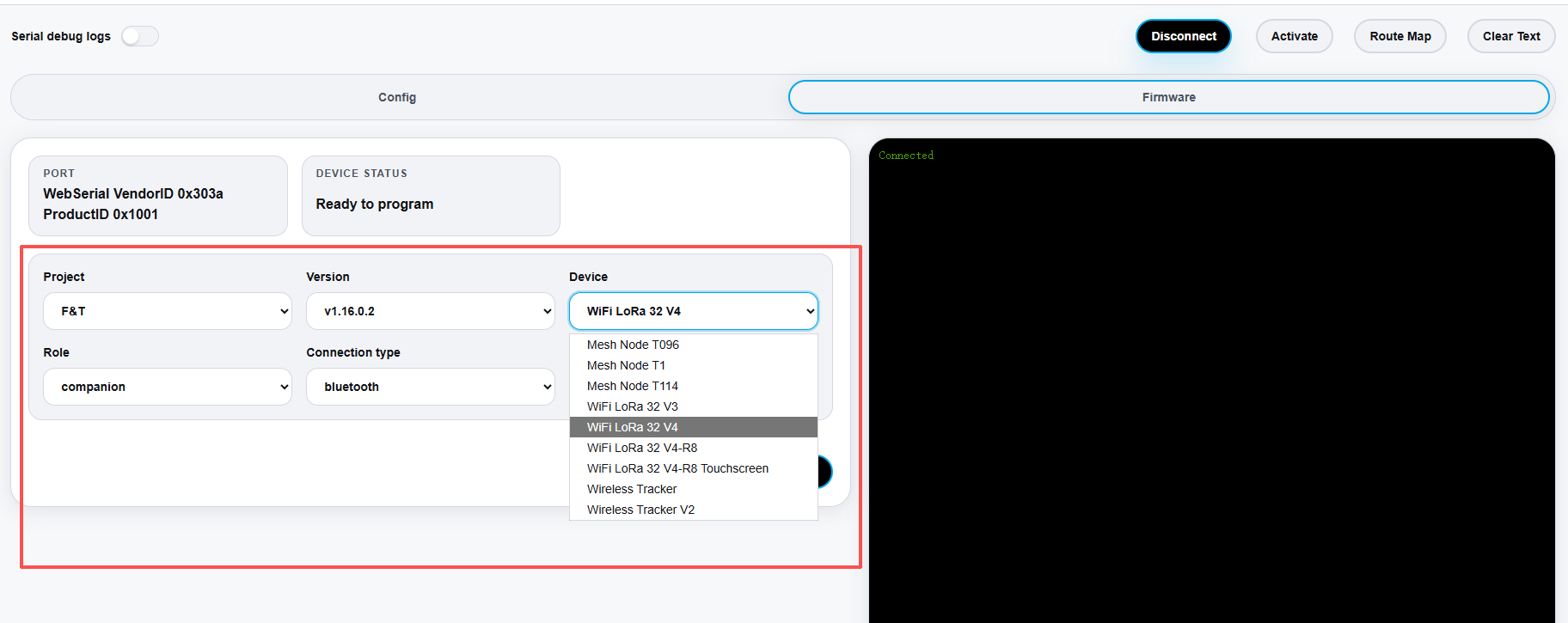
Currently, F&T is the only available project. More open-source projects may be added in the future.
-
After completing the configuration:
Click Erase Flash-->Click Program Firmware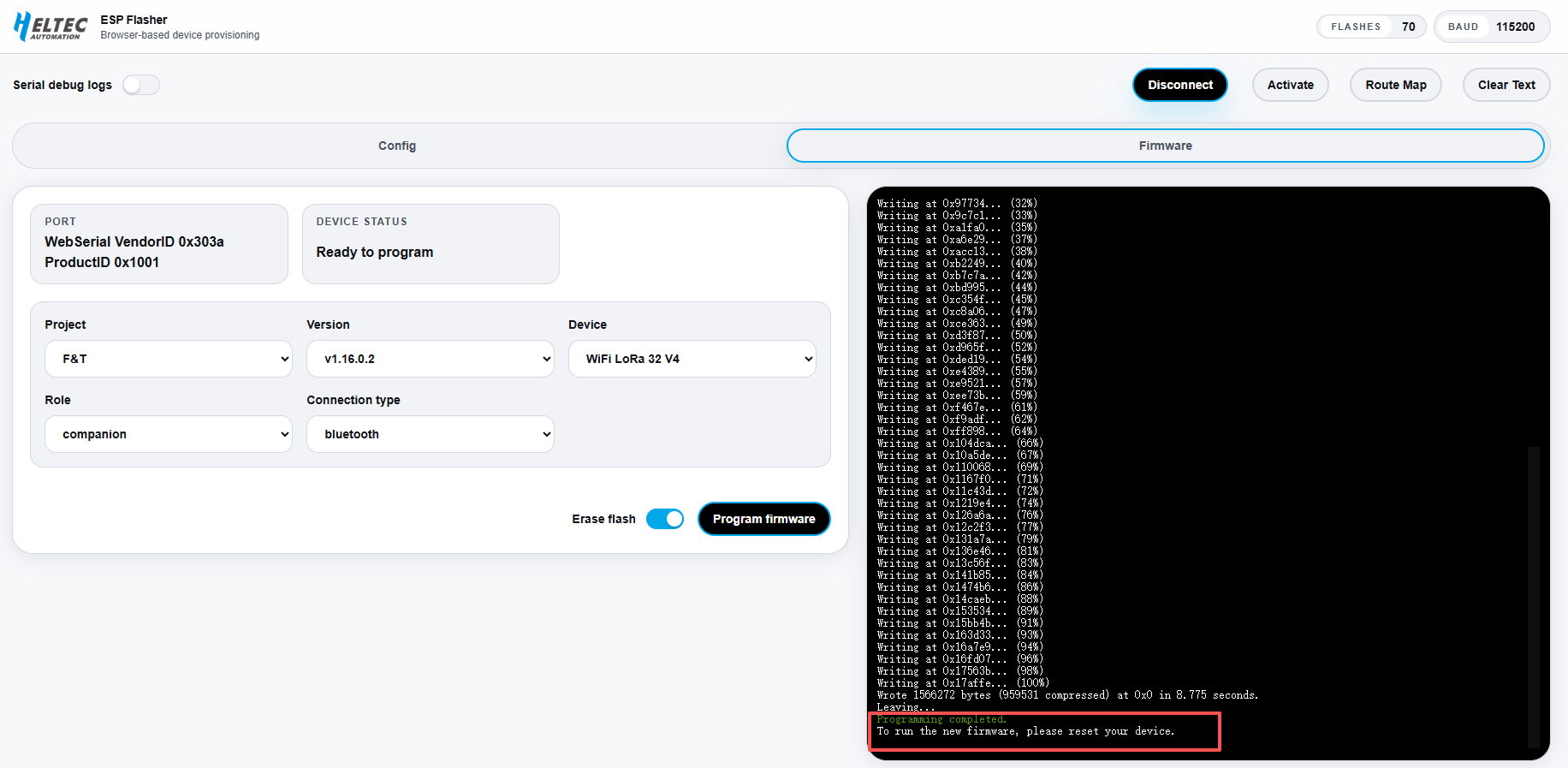
The tool will automatically complete the firmware flashing process. Once the flashing process is completed successfully, press the RST button once to restart the device.
After flashing the F&T firmware, the device must be activated through the Device Remote platform before use.
Activate the Device
If the device displays the following screen, it indicates that the device has not been activated yet.
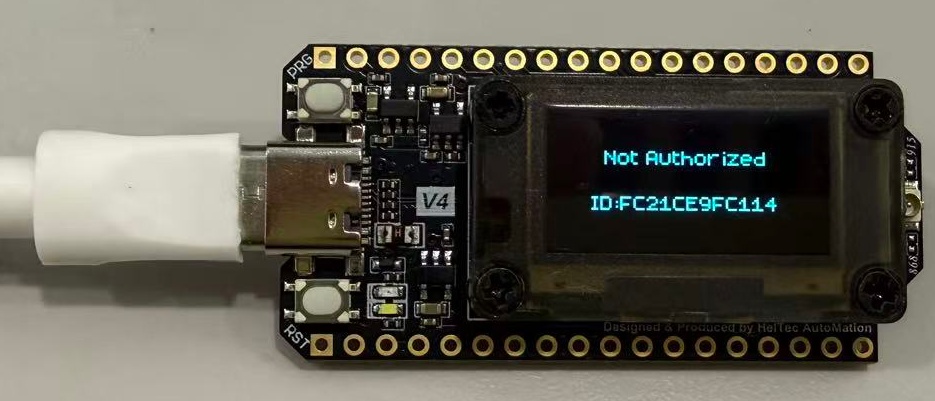
Please follow the steps below to activate the device:
-
On the Device Remote page, Click Connect.
-
Select the corresponding COM port, then click Connect again.
-
Click Activate.
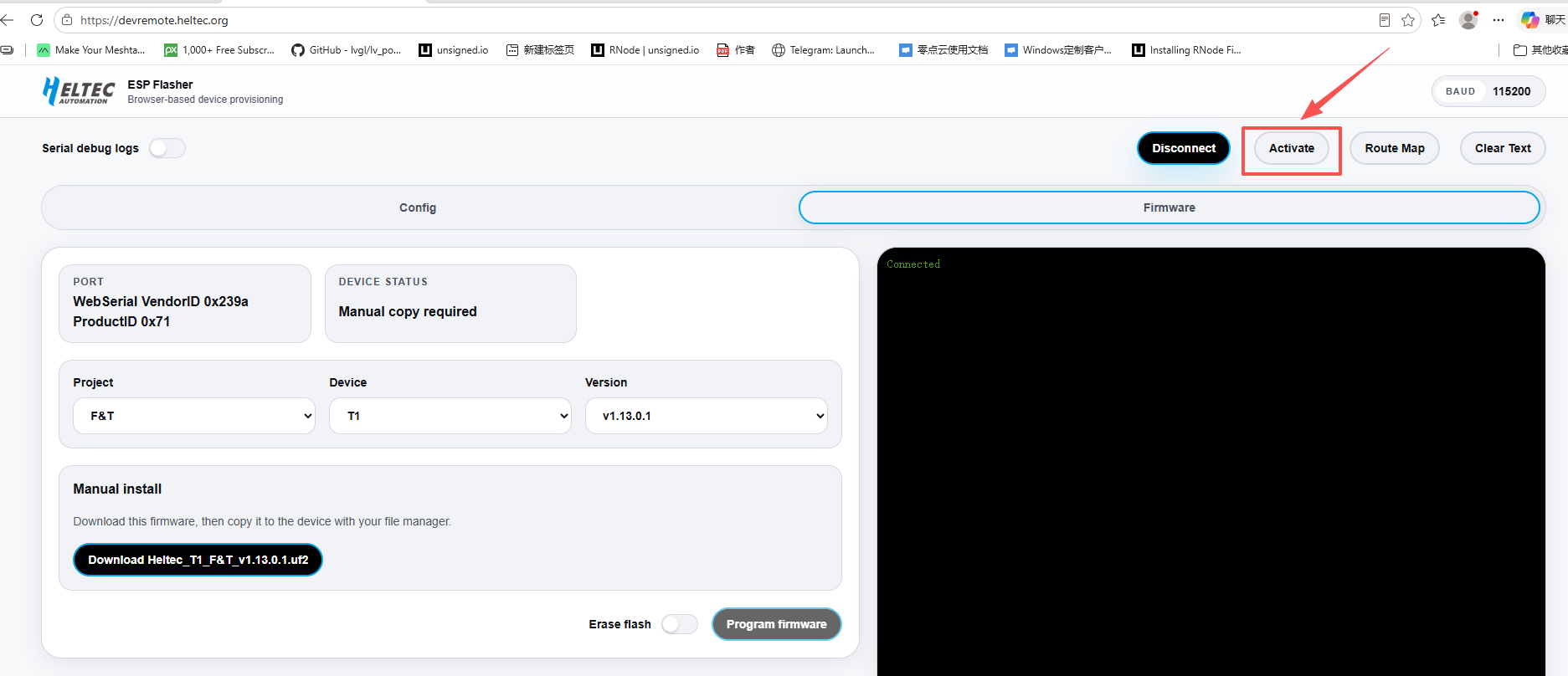
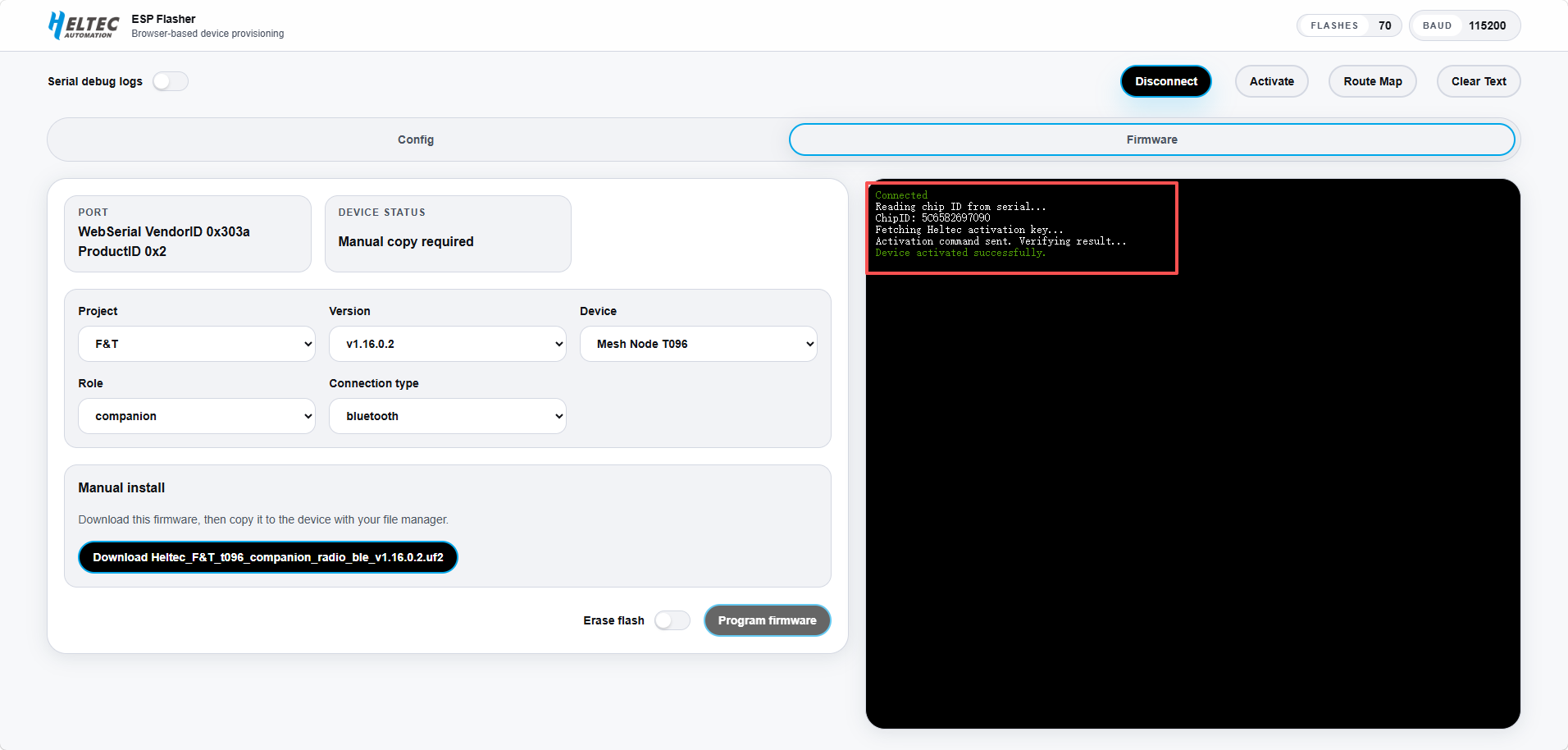
4.The device will be activated automatically. Once activated, the device is ready to use the F&T system.
Function Selection
After the device starts up, it will enter the UI interface and open the Home page by default.
Double-press the PRG button to enter or exit the function selection menu, which provides access to five available functions.
| Function | Description |
|---|---|
| Home | Return to the main screen and view basic device information |
| Recent | View recent messages |
| Radio | Configure radio communication settings |
| GPS | View current GPS positioning information |
| System | Configure device system settings |
Navigation
Short pressthe PRG Button to move the selection to the next option.Press and holdthe PRG Button to confirm the selected function.Double-pressthe PRG Button to return to the previous menu.
System Settings
The System menu provides various device configuration options, including:
- Region: Configure the device region settings.
- Screen Off: Configure the duration before the screen turns off automatically.
- Bluetooth: Enable or disable Bluetooth.
- GPS: Enable or disable GPS.
- Location Share: Enable or disable location sharing.
- LNA:
For devices equipped with an LNA, the LNA function can be enabled or disabled directly from the System menu.
If the firmware is connected through Bluetooth, Bluetooth must be enabled in the System menu before connecting the device to the MeshCore app.