Quick Start
The Meshtower V2 series is available in two variants: the Meshtower V2 standard-power version with an RF output power of 21 ±1 dBm, and the Meshtower V2H high-power version with an RF output power of 28 ±1 dBm. The setup and operating procedures are identical for both versions.
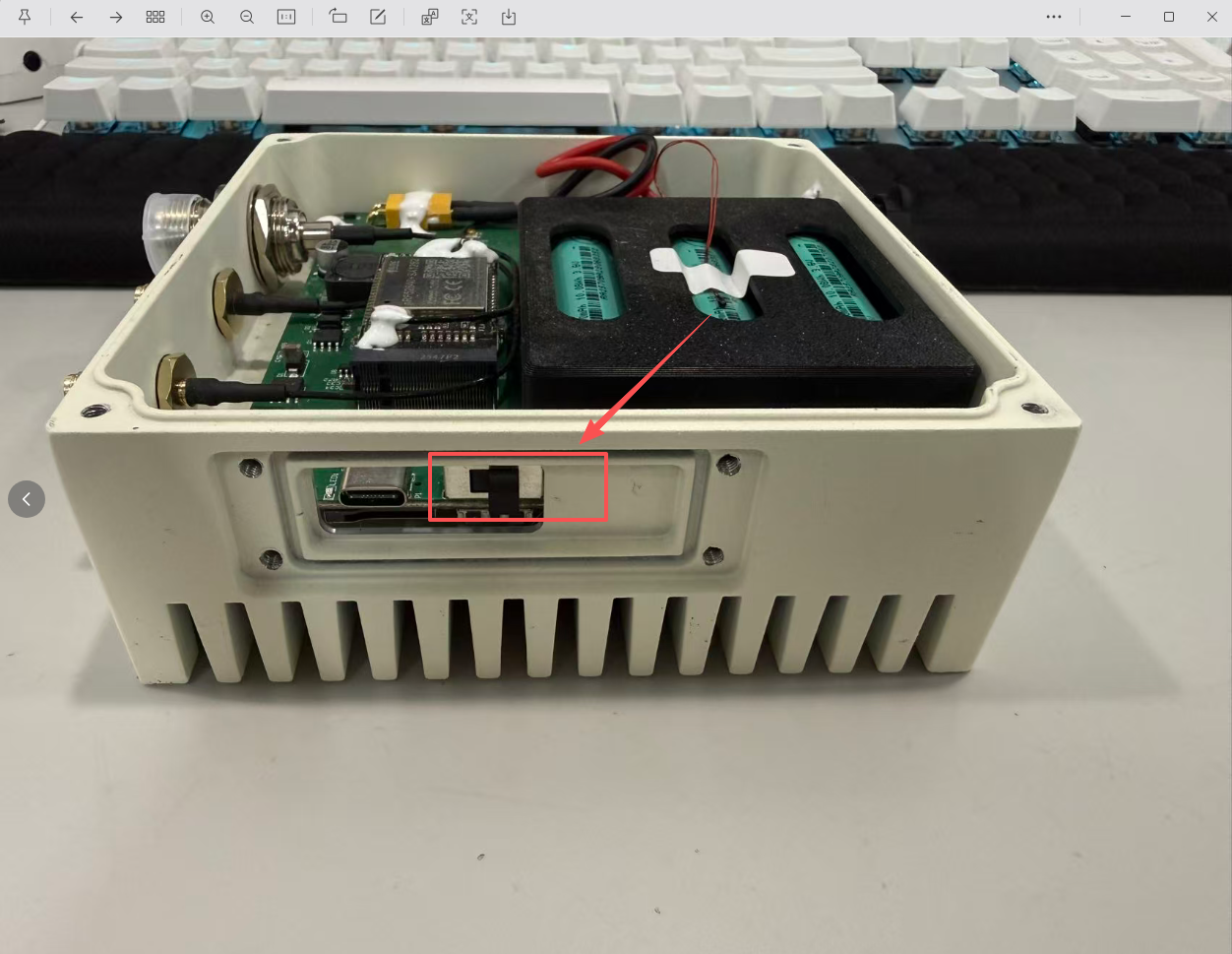
Turn on the Lithium Battery Power Switch
The battery power switch must be Turned On before charging. The device cannot be charged when the battery power switch is turned off.
- Toggle the switch to the Right to Turn on the Lithium Battery Power.
- Toggle the switch to the Left to Turn off the Lithium Battery Power.
Charging
The Meshtower comes with preconfigured battery management settings. Once connected to an 18–24V solar panel or a USB-C PD3.0 (20V) power source, and with the antenna properly installed, the device is ready for operation.
However, before first use, it is recommended to connect an 18–24V solar panel or a USB-C PD3.0 (20V) power source to activate the battery function, and fully charge the built-in battery through the USB-C port or DC power interface to ensure more stable power delivery and optimal performance.
Before charging the device, make sure the battery power switch is Turned on.
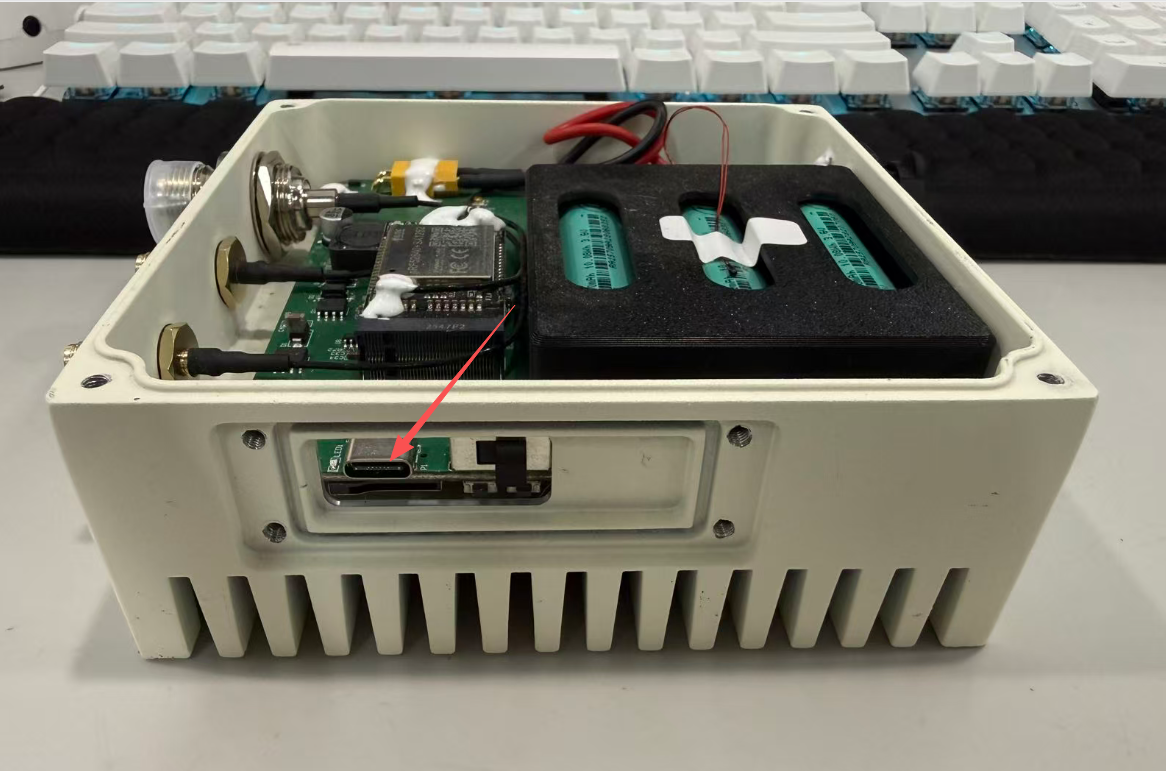
Via USB-C(recommended)
The USB-C port requires PD3.0 and a 20V voltage input.
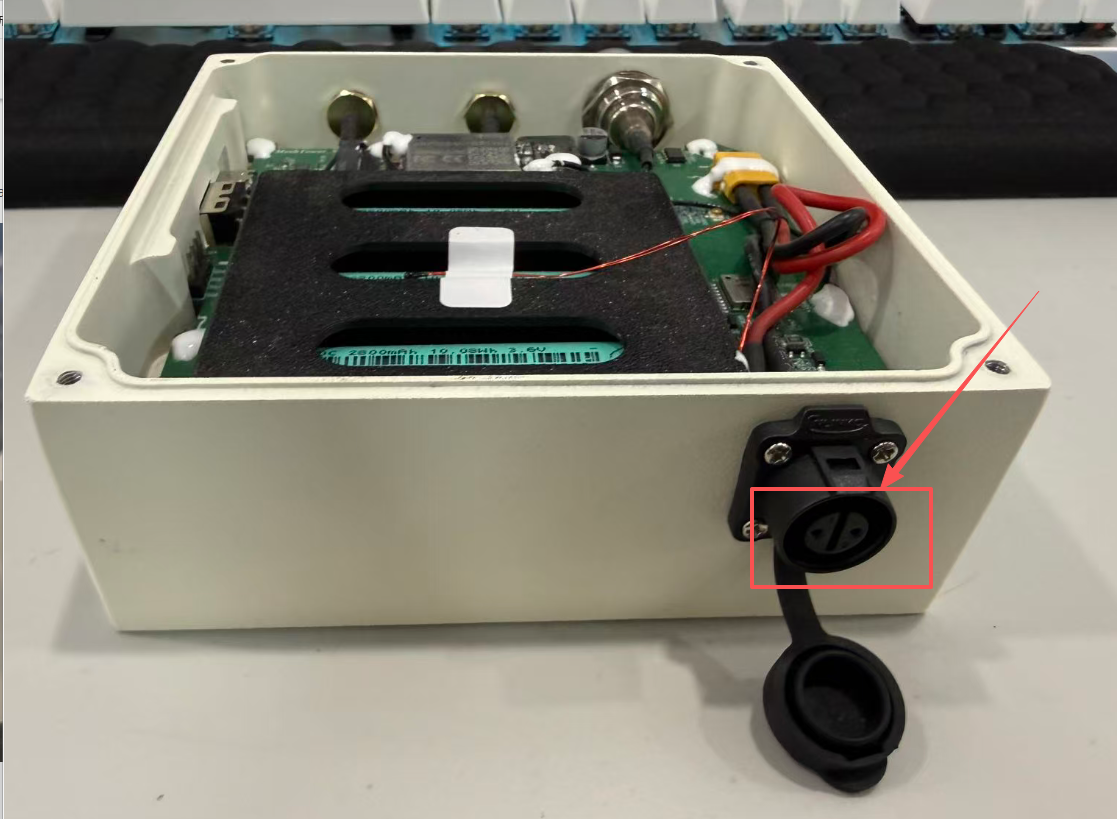
Via DC
The DC interface is the solar panel input port, which uses an XT30 connector and supports an input voltage of 18-24V.
Checking Battery Level
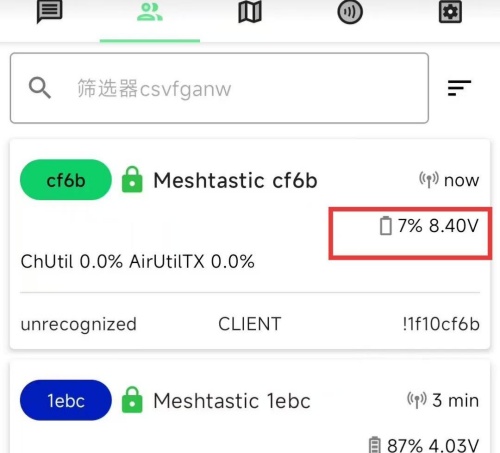
- You can check the battery level via the Meshtastic app on your phone.
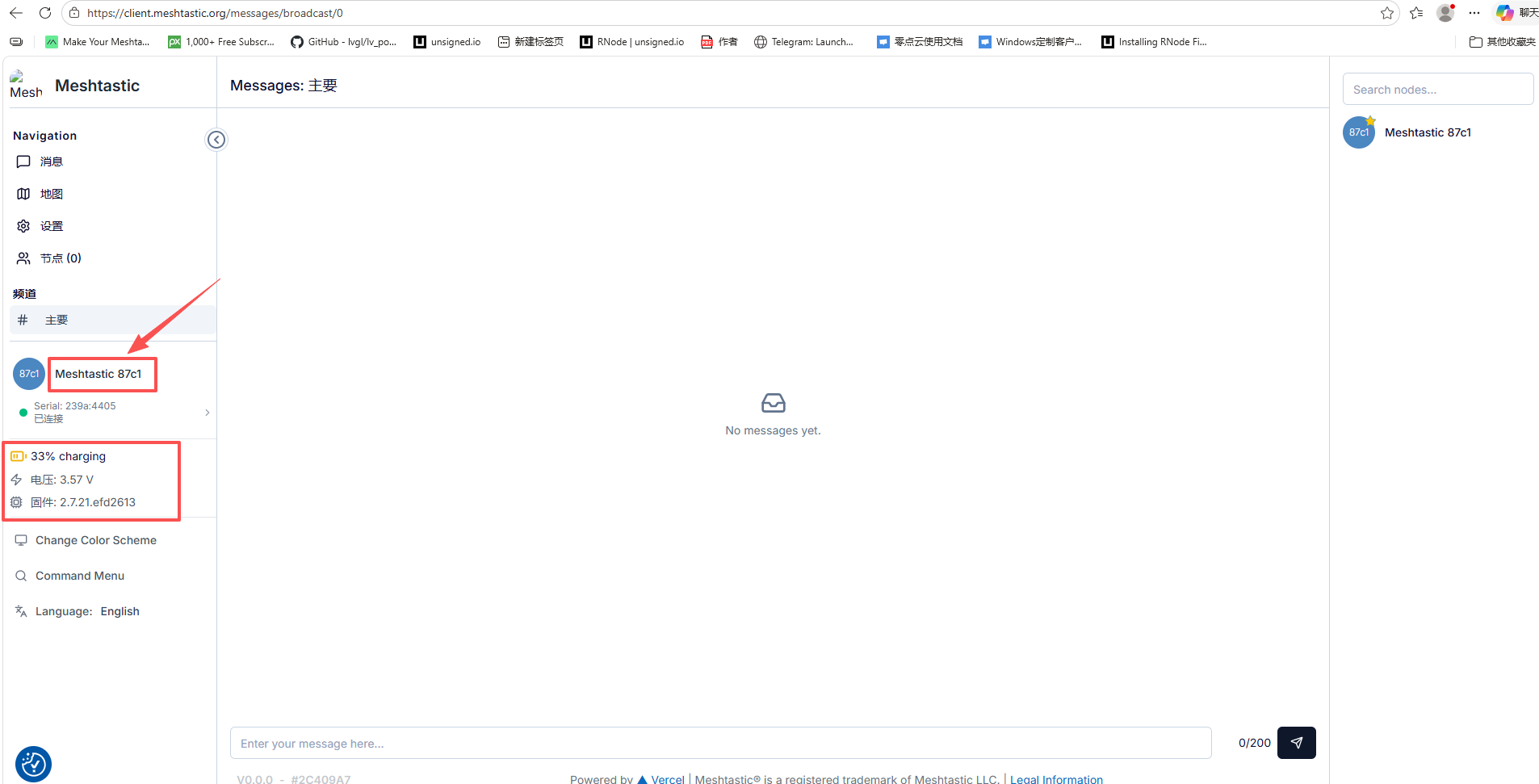
- You can view device-related information through the serial port in the Meshtastic client.
Firmware
Pre-installed Firmware
The Meshtower comes pre-installed with Meshtastic firmware.
The default password is: 123456.
For instructions on how to use Meshtastic, please refer to Meshtastic official documentation.
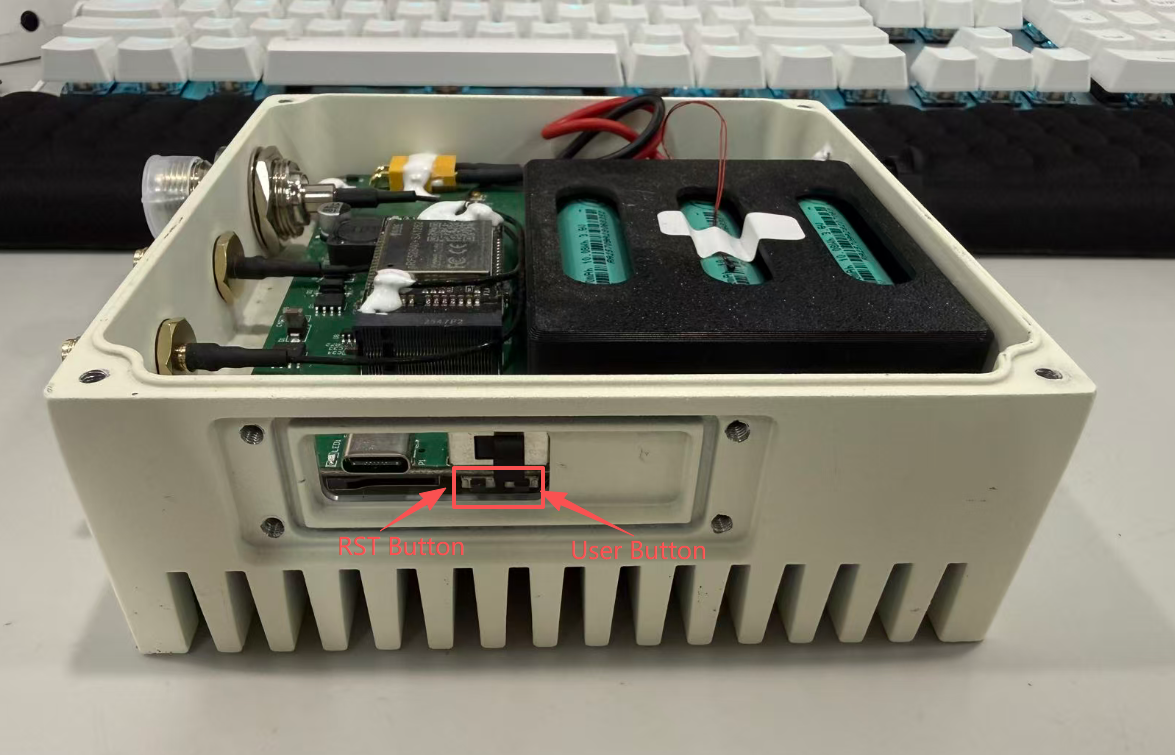
If the serial port cannot be detected, the device may have entered low-power mode. Please press the RST button once to restart the device and connect to it before it enters low-power mode again.
Firmware Installation and Update
You can install or update the firmware via the USB-C port.
- Meshtastic Firmware: https://resource.heltec.cn/download/MeshTower_V1.1/firmware-heltec-mesh-tower-2.7.21.efd2613(1).uf2
The USB-C cable or port must support USB 2.0. If your device only supports USB 1.x, you may need a suitable adapter.
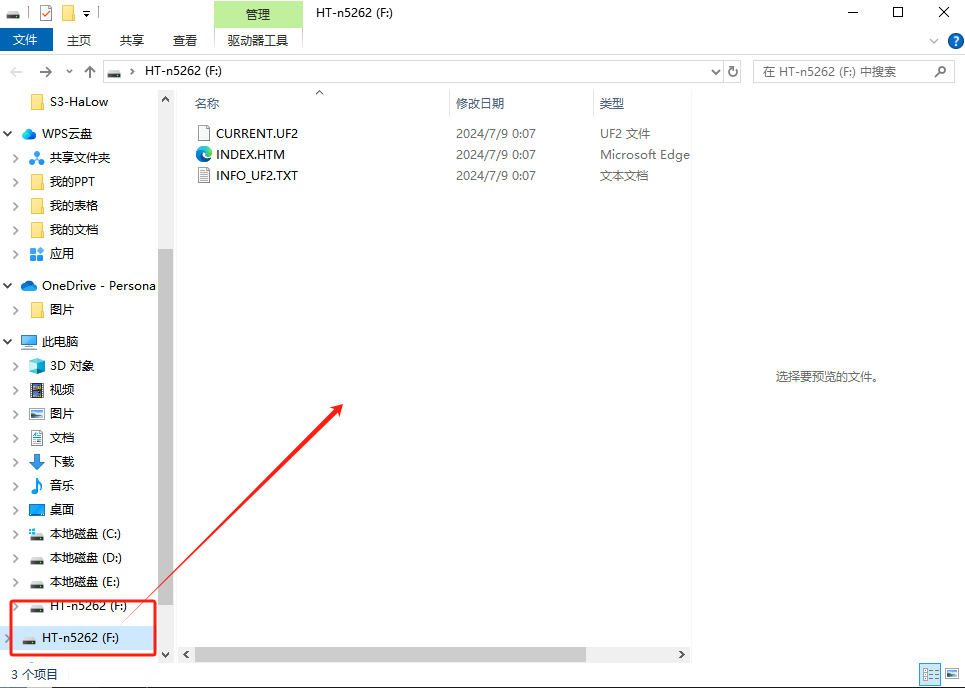
If your installation method requires entering DFU mode, you will need to open the device casing and double-press the RST button to enter DFU mode.
At this point, the computer will pop up a USB drive named HT-n5262. Copy your firmware to this drive.