Meshtastic Quick Start
Firmware Flashing
Note: Currently, MeshPocket V2 cannot be flashed directly using the official Meshtastic Web Flasher, and its firmware is not yet available on the official Meshtastic firmware download page. In the meantime, you can download the firmware from Heltec's Resources page and follow the steps below to flash it manually.
1. Enter Bootloader Mode: Double-click the RST Button to enter Bootloader mode.
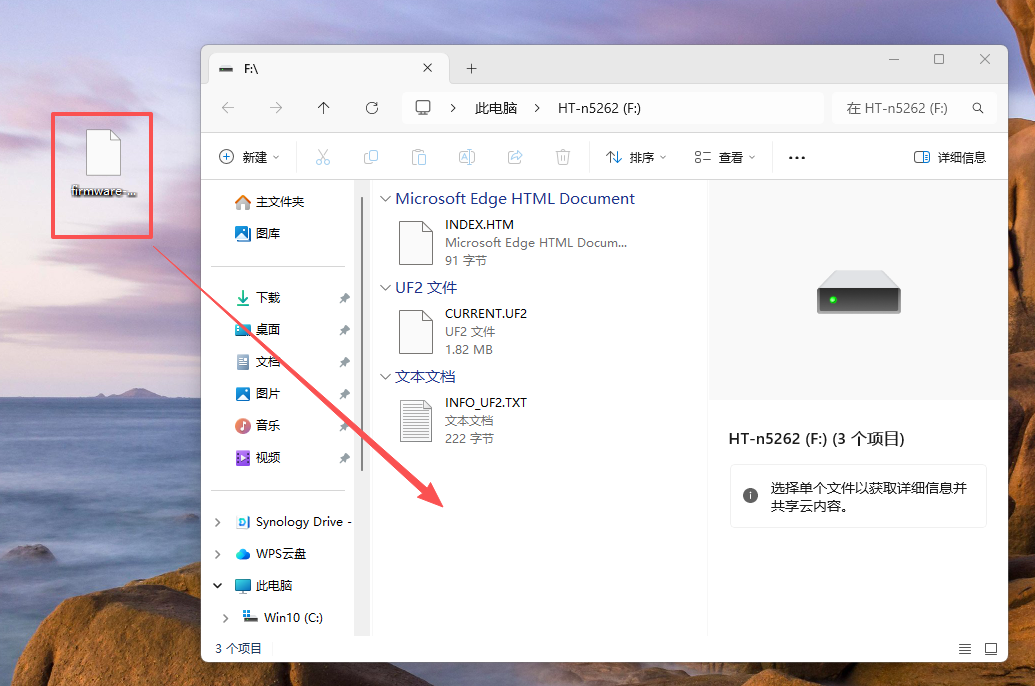
2.Copy the downloaded firmware file to the device drive named DFU mode.
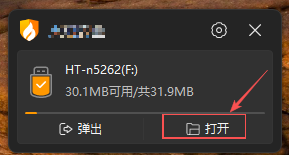
3.Copy the downloaded firmware file to the device's DFU mode drive; once the file transfer is complete, the device will automatically restart and finish flashing the firmware.
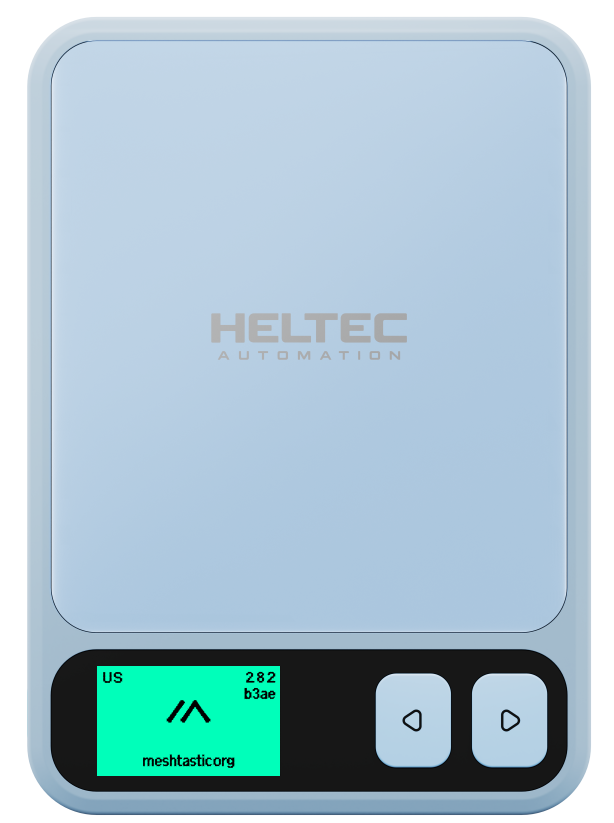
4.After successfully flashing the Meshtastic firmware, the Meshtastic interface will be displayed on the device screen, as shown below.
BaseUI Interface Guide
After firmware flashing is complete, MeshPocket V2 automatically restarts and enters the Meshtastic BaseUI. The following sections describe the main screens and their functions.
1. Home Screen
The Home Screen displays the number of online nodes and the device ID.
Long-Press the Right Button on the Home Screen to access the following options:
- Sleep Screen: Turn off the screen.
- Send Position: Send the device's current location.
2. Messages
Displays recently received messages, allowing users to view incoming messages directly on the device.
Long-Press the Right Button on the Home Screen to access the following options:
- Reply: Select a predefined quick reply (e.g., "Hi" or "No"), or select the blank option to enter a custom message using the built-in keyboard.
- View Chats: View messages in the current channel or switch to the all-messages view.
- Delete: Delete all messages or delete the oldest message.
3. Hops / Signal
Displays hop count and signal information for nodes heard by MeshPocket V2.
- Hops: Indicates the number of relay hops between nodes.
- Signal: Displays received signal information.
4. Distance
Displays the estimated distance between MeshPocket V2 and other nodes based on their reported GPS positions.
5. Position
Displays the device's GPS location when a valid GPS fix is available.
6. Clock
Displays the current time.
The device synchronizes its time after connecting to the Meshtastic mobile app. Before synchronization, the displayed time may remain at 00:00.
7. LoRa Info
Displays the current LoRa configuration, including device role, channel information, and operating frequency.
Settings: Long-press the Right button to access the LoRa settings menu.
Available settings include:
| Setting | Description |
|---|---|
| Role | Configure the device role. |
| Radio Preset | Select the LoRa modem preset. |
| Frequency Slot | Configure the frequency slot. |
| LoRa Region | Select the LoRa operating region. |
| Transmit Enabled | Enable or disable wireless transmission. |
8. System
Displays system information, including heap memory, firmware version, device uptime (UP), and client connection status.
Settings: Long-press the Right button to access the system settings menu.
Available settings include:
| Setting | Description |
|---|---|
| Sound | Configure notification sounds. |
| Display | Configure display options. |
| Bluetooth Toggle | Enable or disable Bluetooth. |
| Reboot / Shutdown | Restart or shut down the device. |
9. Power Status Screen
Displays the current battery level and power information when MeshPocket V2 is charging or supplying power to an external device.
- Battery Level: Displays the current battery level.
- Power: Displays the current charging or output power.
For more information on Meshtastic configuration, please refer to the official Meshtastic Documentation