Meshtastic Quick Start
This guide provides a quick-start introduction to using Meshtastic with RadioCore series products. It covers firmware flashing, device setup, mobile app connection, and basic messaging to help users get started quickly.
Flash Firmware
Prerequisites
Before flashing the firmware, prepare the following:
- A USB cable that supports data transfer.
- The corresponding RadioCore device.
Supported RadioCore Devices for Meshtastic
| Product Model | Description |
|---|---|
| RC32-62 | ESP32-S3 + SX1262 |
| RCC6-62 | ESP32-C6 + SX1262 |
| RC52-62 | nRF52840 + SX1262 |
| GA01 | Extension device based on RC32-62 / RC52-62 |
| GB01 | Extension device based on RC32-62 / RC52-62 |
| RDC1 | Extension device based on RC32-62 / RC52-62 |
Web Flasher
RC32-62, RCC6-62, and RC52-62 can be flashed directly using the Meshtastic Web Flasher.
GA01, GB01, and RDC1 are extension devices based on RC32-62 or RC52-62 and do not have separate model names in the Web Flasher. Select the corresponding base model when flashing:
- Extension device based on RC32-62 → select RC32
- Extension device based on RC52-62 → select RC52
Step 1: Connect the Device and Open the Web Flasher
Connect the RadioCore device to your computer using a USB data cable.
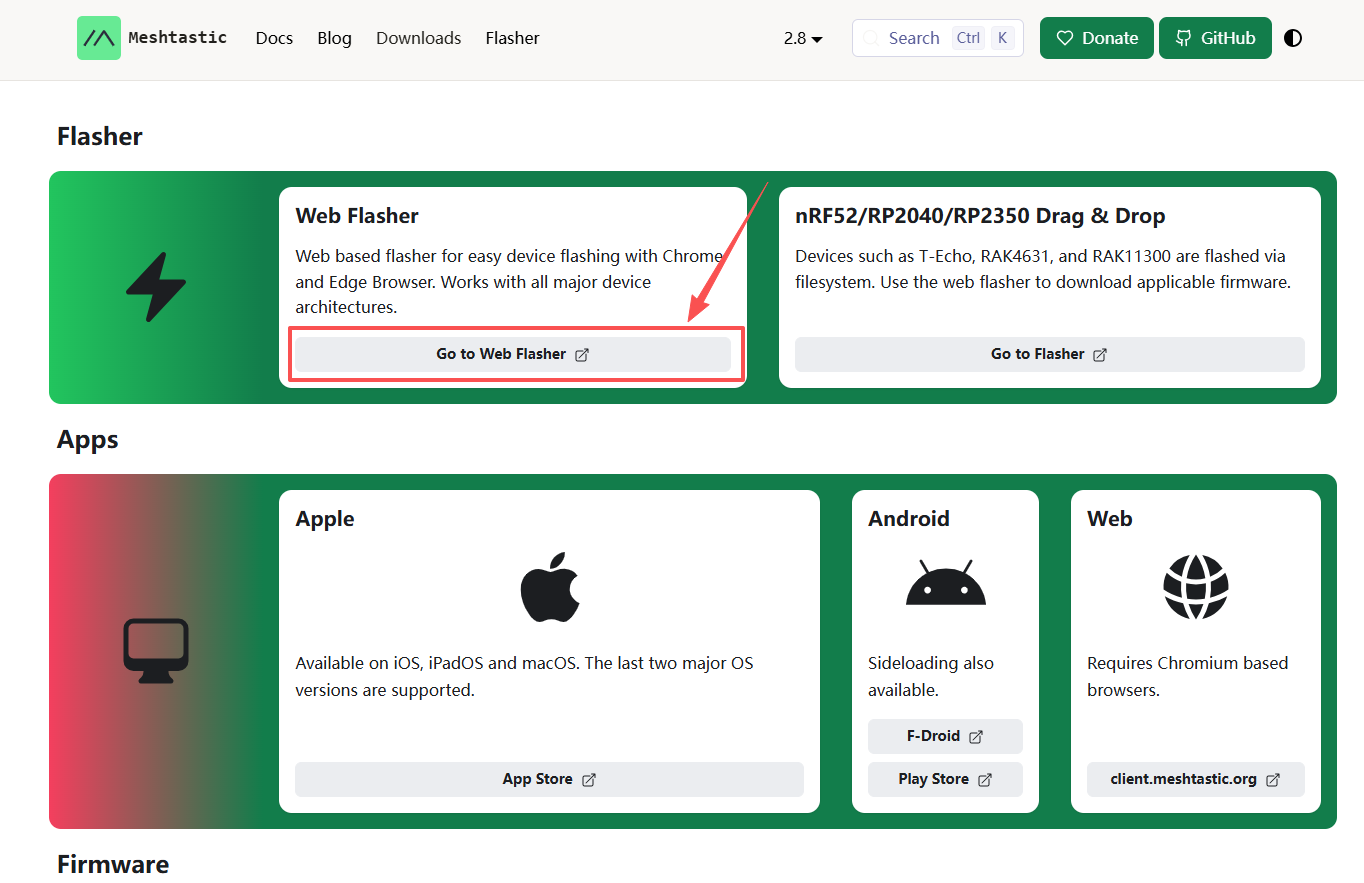
Open the Meshtastic Downloads page and click Go to Web Flasher to open the online firmware flashing tool.
Step 2: Select the Target Device
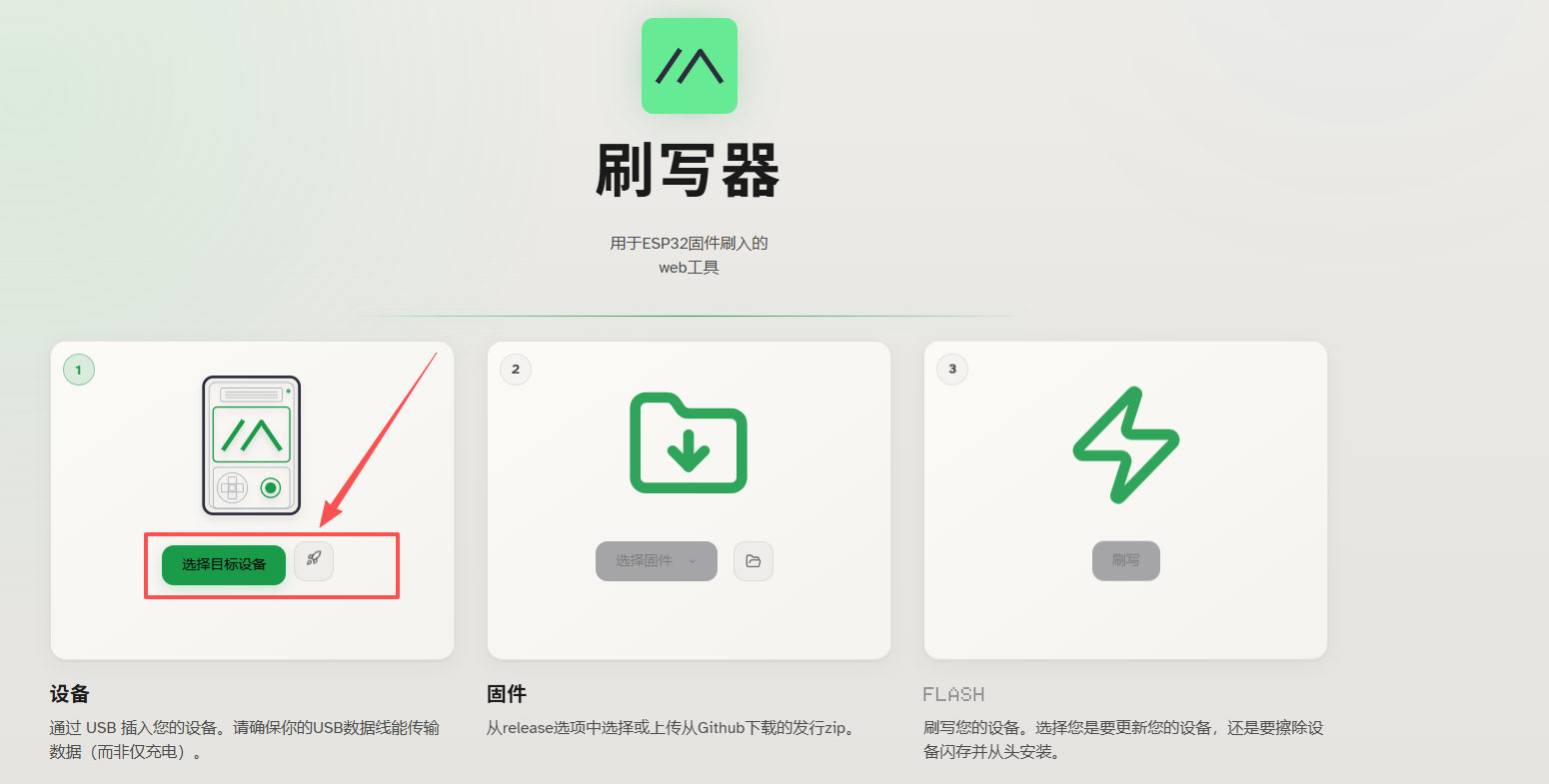
Click Select Target Device to open the device selection interface.
Step 3: Select the RadioCore Model
Select Heltec from the device list, then select the corresponding RadioCore model.
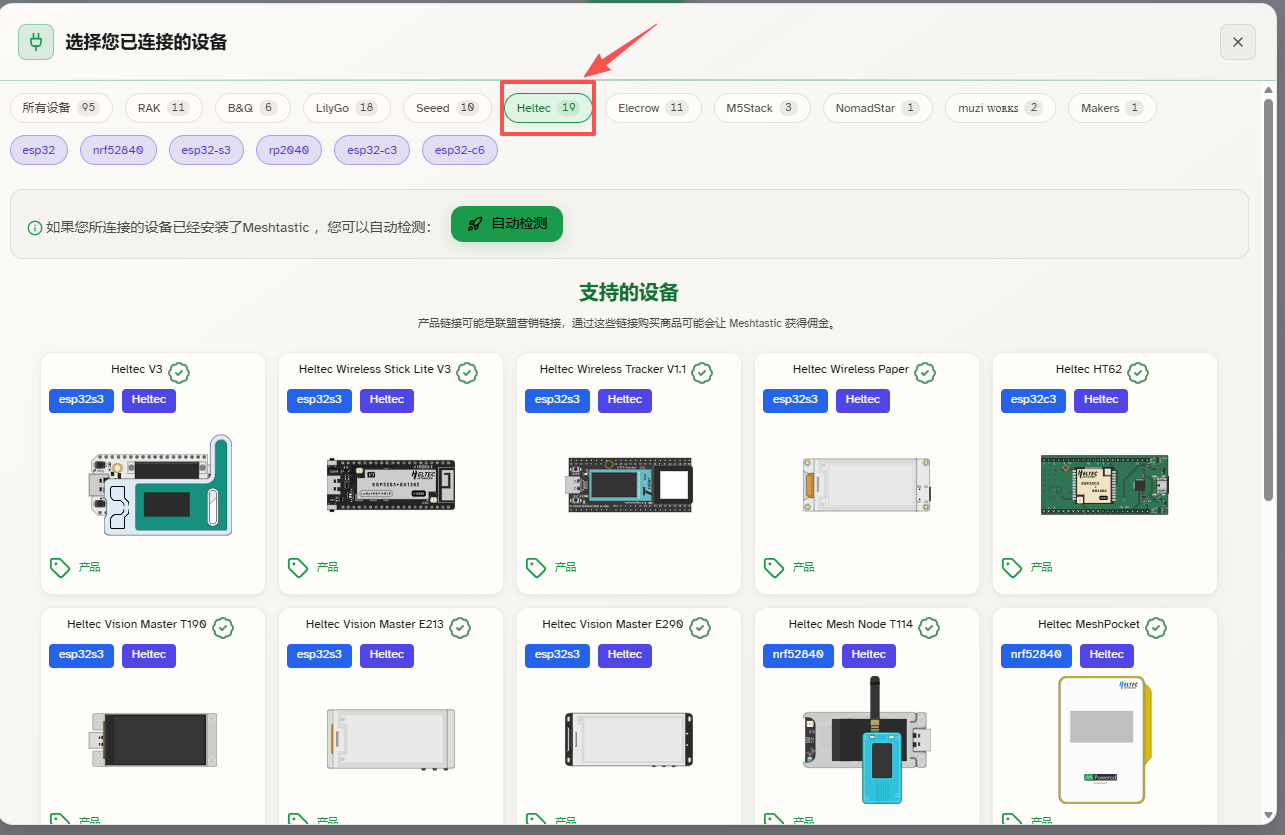
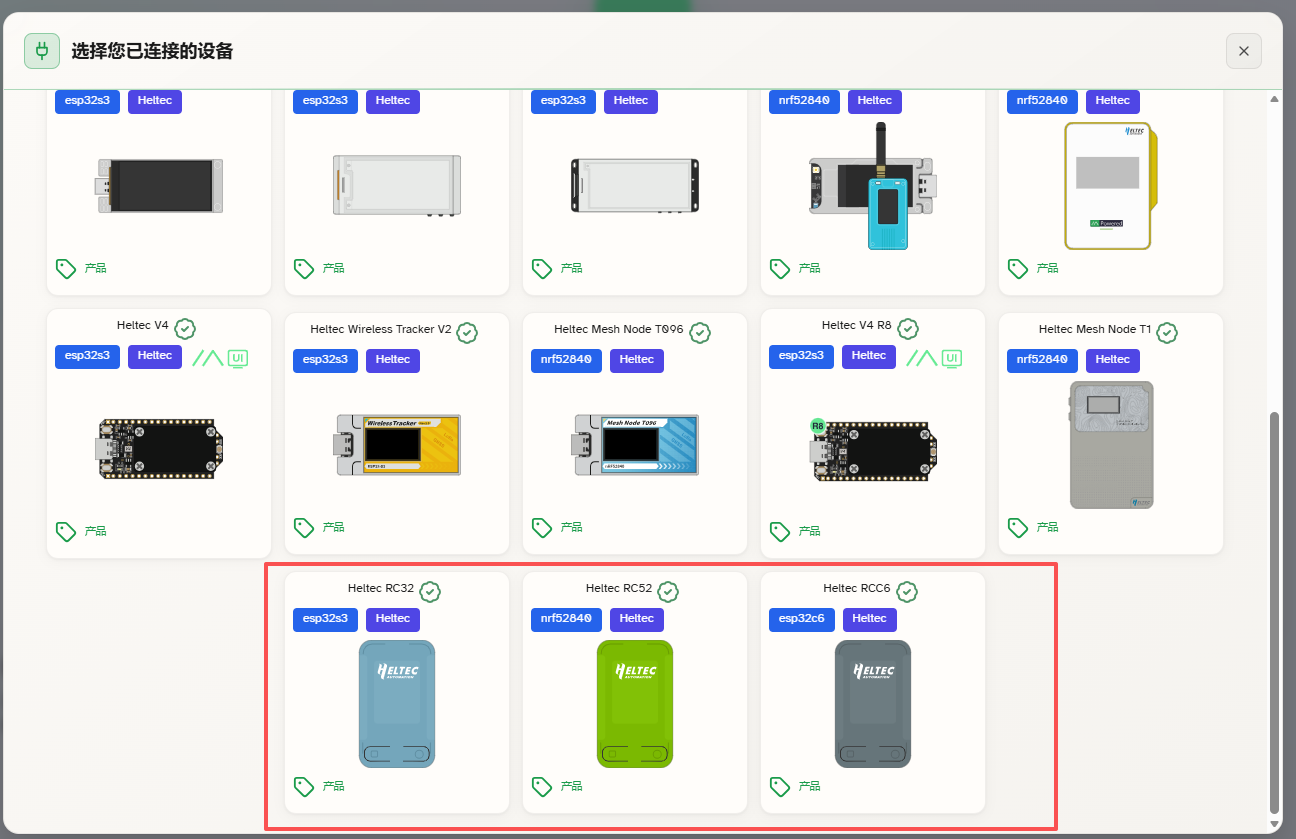
The device selection mapping is as follows:
| RadioCore Device | Model to Select in Web Flasher |
|---|---|
| RC32-62 | RC32 |
| RCC6-62 | RCC6 |
| RC52-62 | RC52 |
For GA01, GB01, and RDC1, select the corresponding base model according to the hardware they are based on.
Step 4: Select the Firmware Version
After selecting the device model, the Web Flasher automatically selects the corresponding firmware version.
In most cases, the default firmware version can be used without modification.
For RC52-62, select Meshtastic firmware version 2.8.18 or later in the Web Flasher.
Step 5: Flash Firmware
ESP32-Based Devices (RC32-62 / RCC6-62)
Enter Bootloader Mode: Press and hold the PRG button → Briefly press the RST button → Release the PRG button.
Flash Firmware: Click Flash in the Web Flasher → Select the corresponding serial port from the browser pop-up window → Click Connect to begin flashing.
For RC32-62 and RCC6-62, the COM Port may change after entering Bootloader mode. If the original COM Port is no longer available, select the newly detected port when connecting the device to the Web Flasher.
nRF52840-Based Device (RC52-62)
Click Flash in the Web Flasher and download the firmware in .uf2 format. This file contains the Meshtastic firmware for RC52-62.
1.Quickly double-press the RST button to enter DFU mode. The device will appear as a USB drive named DFU on your computer.
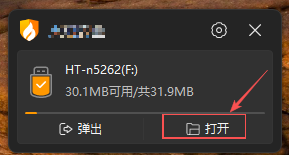
2.Open the DFU drive and copy the downloaded .uf2 firmware file to it.
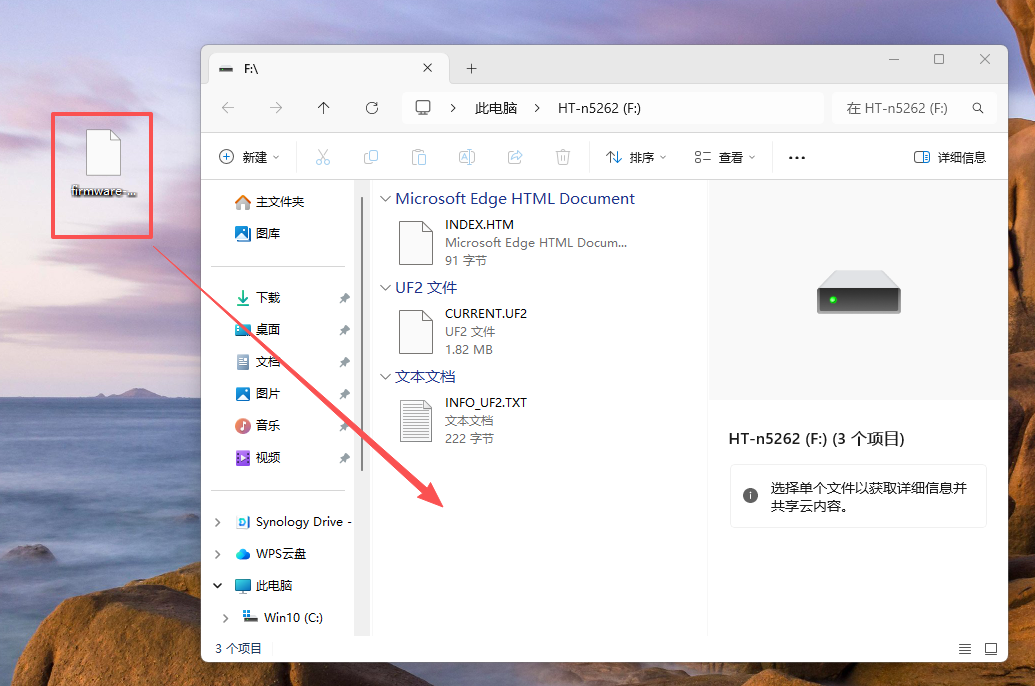
3.Once the file transfer is complete, the device will automatically restart and apply the new firmware.
The firmware flashing process may take some time. Do not disconnect the USB cable or interrupt the process before it is complete.
Step 7: Restart the Device
For ESP32-based devices, briefly press the RST button after flashing is complete to restart the device.
For RC52-62, the device restarts automatically after the UF2 file has been copied.
The Meshtastic firmware is now installed, and the device is ready for further configuration.