HC02 Wireless Communication Test Program
Preparation
- Ensure the upstream HaLow gateway is operating normally.
- Serial port tool: XCOM V2.6
- TCP debug assistant: TCP Debug Tool
Configuration
1.Refer to the following table to correctly connect the relevant pins (RX, TX), and set GPIO10 to high level to put HC02 into configuration mode.
| Pins | Type | Function | Description |
|---|---|---|---|
| GPIO10 | DI | Mode Determination | "1": Configuration Mode, "0": Transparent Mode. The baud rate in configuration mode is fixed at 115200. When changing from 1 to 0, if there is a configuration modification, the device will restart and reconnect to the HaLow AP. |
| GPIO11 | DI | Wake-up Pin | "1": Wake up, "0": AUTO-Sleep. |
| GPIO12 | DO | Connection Status | "0": Connected, "1": Disconnected. |
| GPIO16 | I/O | TX | - |
| GPIO17 | I/O | RX | - |
2.Open the serial port tool and configure via AT commands. For specific commands, please refer to the AT Command Guide.
Important Serial Port Configuration Notes:
- Region: Must be consistent with the gateway.
- HaLow gateway connection credentials: SSID and password.
- Server address: Set to the test computer's IP address within the local area network.
- Additional settings: Configure port, IP mode, and other relevant parameters.
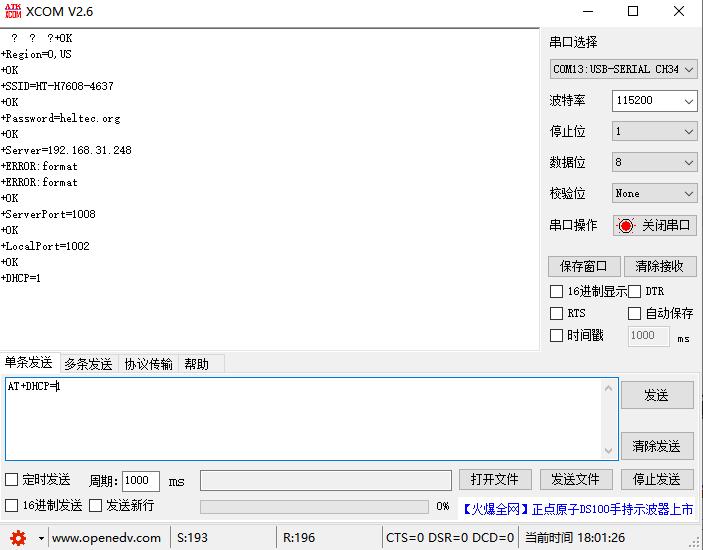
3.Enter Transparent Transmission Mode,Disconnect Pin 10 (set to low level) and set Pin 11 to high level.
Establish Communication
1.Connect the computer to the same local network as the HaLow gateway.
2.Open the TCP debug tool.
3.Configure the tool as follows:
- Communication Mode: Select "UDP" (using UDP as an example).
- Remote Host: Enter the IP address of the HaLow gateway.
- Remote Port: Enter the "Local Port" configured in the AT module.
- Local Port: Enter the "Server Port" configured in the AT module.
Initiate Communication
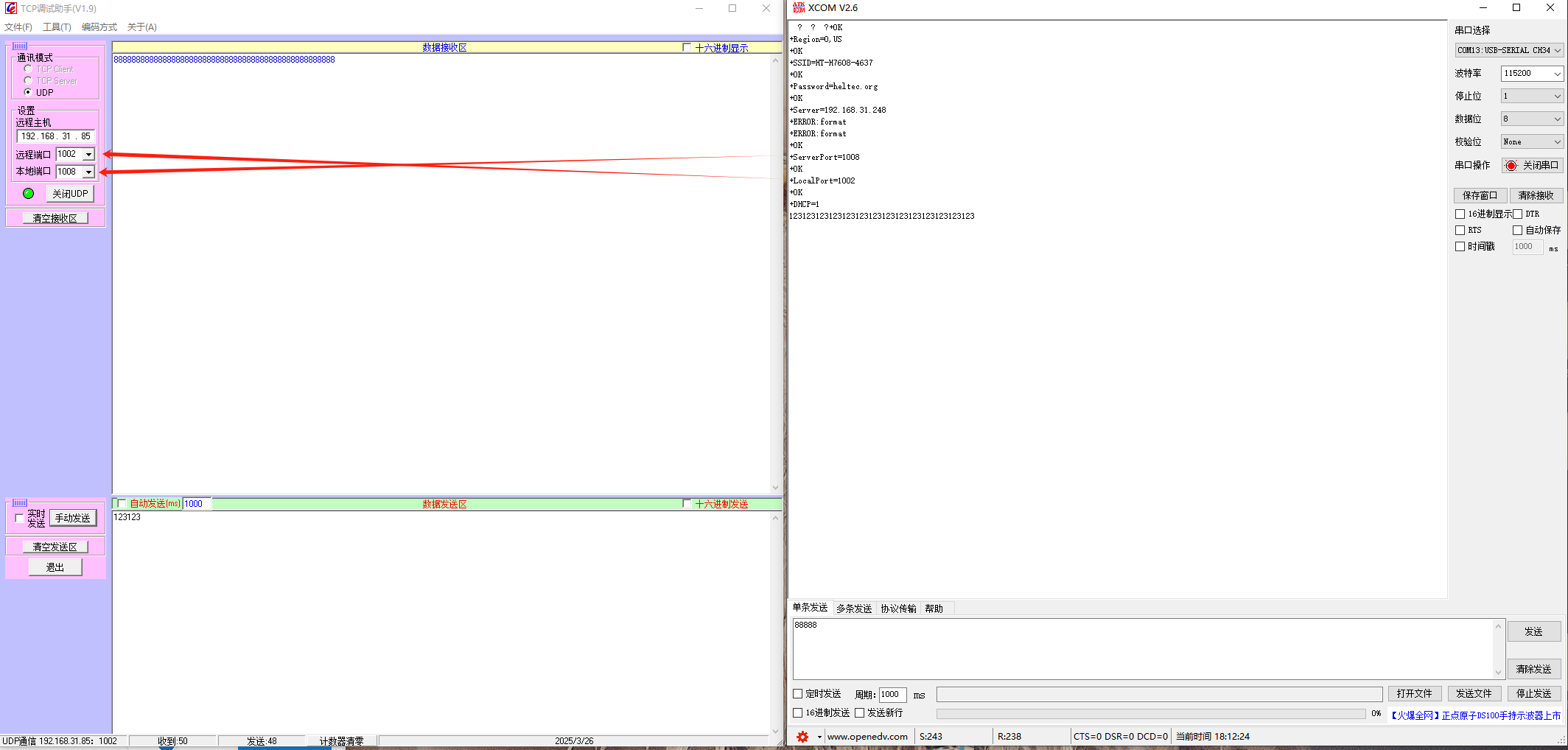
Start the UDP connection. Two-way communication can now be established between both ends!