LoRaWAN & Meshtastic Usage Guide
- LoRaWAN
- Meshtastic
This topic describes how to quickly get started with the LoRaWAN version of Capsule Sensor V3.
If you accidentally erase the code, please refer to the WirelessBoot theme:
Power On
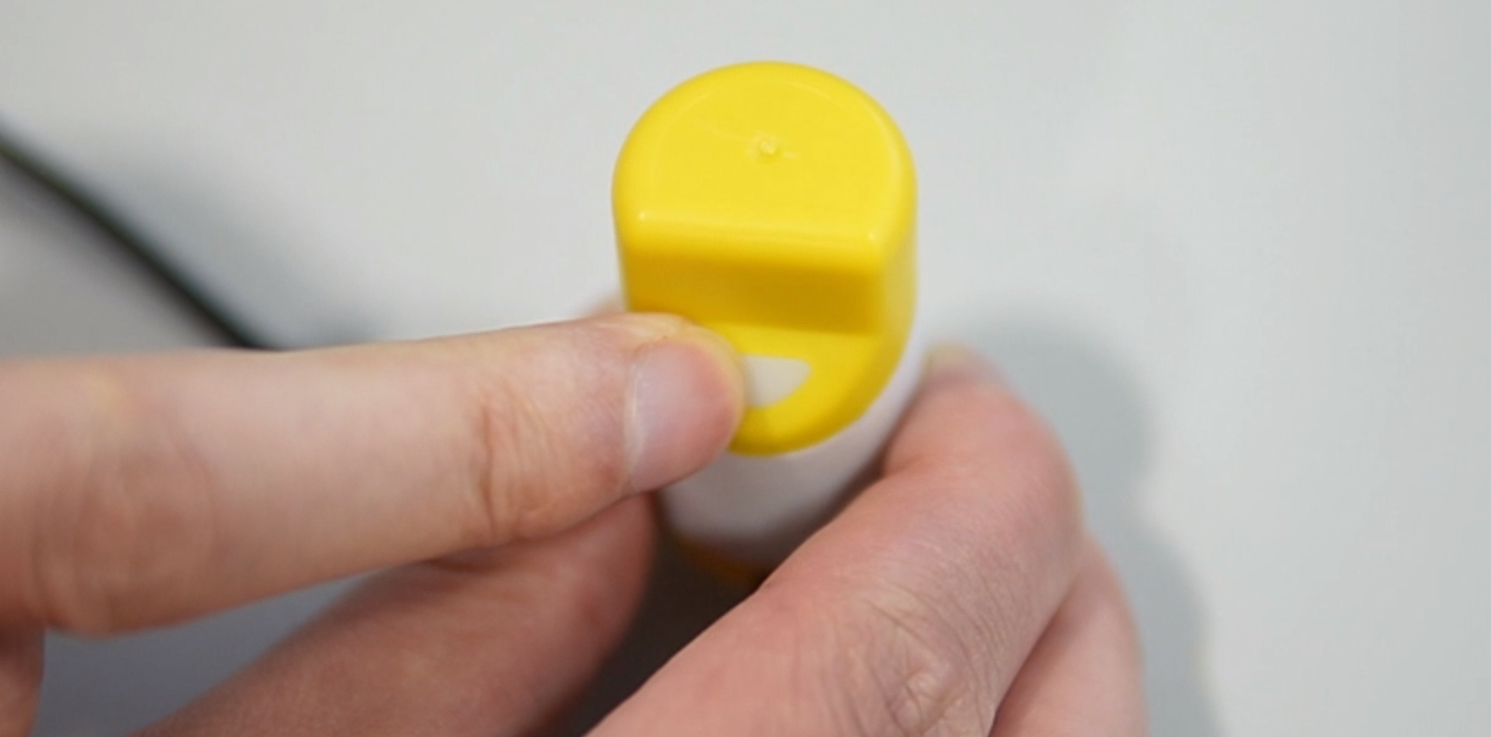
Hold the button for 3 seconds until the white light comes on, then release the button.
The actual button is located at a small point in the very center of the key. There should be a clear pressing feedback when you press the button. If your finger cannot successfully press it, you can use your fingernail or a small tool to assist.
t is recommended to connect the device to a charging cable during the first startup to prevent it from failing to operate due to a lack of power.
Configuration
If you use one-click registration and do not need to modify configuration parameters, please skip this step.
-
Press the key three times quickly until the white LED and the blue LED light up at the same time and start flashing quickly. At this time, the device enters the configuration mode.
-
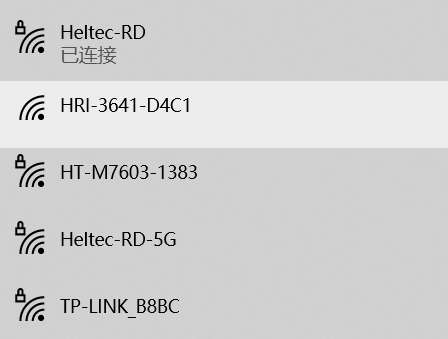
Use your phone or computer to search for the device's WiFi hotspot: HRI-3641_XXXX. Connect to this WiFi with the password: Heltec.org.
-
Once the connection is successful, visit 192.168.4.1 in your browser.
-
The parameters are described as follows, this determines the operating state of the device and displays the information required to activate the device on the server:
Parameters Description REGION LoRaWAN band, which must be consistent with the gateway CLASS Working mode, support Class_A or Class_C OTAA/ABP Network access mode ADR Data rate adaptation DR Data rate Confirm Uplink message received confirmed DEVEUI A 64 bit extended unique identifier for your end device. APPEUI AppEUl (JoinEUI) is a 64 bit extended unique identifier used to identify the Join
Server during activation.APPKEY An end device specific encryption key used during OTA Channel LoRaWAN channel Interval(S) LoRaWAN transmission interval Retry Number of retransmission attempts by LoRaWAN Product Product model Firmware Firmware version Battery Battery level Charge Whether to charge -
Once configured, click
Summitto submit. Press the device button, the white light will blink once, the device has started to work.
The device has no action in configuration mode and will restart automatically after 10 minutes.
Connecting to LoRa server
Before that, make sure your LoRa gateway is registered with the relevant server and is working well. Make sure the gateway's channel and frequency band to match the Capsule Sensor.
One-click scan and register on SnapEmu
Only devices with the LoRaWAN program already installed at the factory can use the one-click code scanning registration function. If you refresh your firmware, or modify device parameters, please use Manual registration.
Only for SnapEmu.
-
Install SnapEmu App.
-
Open SnapEmu, click the
+in the upper right corner, selectSCAN. -
Scan the device QR code.
-
Fill in the device
groupandDescription, then clickAdd Device. -
Return to the APP home page and wait a few moments, the device is activated. Once the device has collected six data points, it can plot them by selecting hours, days, or weeks as units.
Refresh the page method: Press and hold the area in the diagram to drop down. Once the device has collected six data points, it can plot them by selecting hours, days, or weeks as units.
Manual Registration
Go to the Capsule Sensor configuration page to obtain relevant information and register the device just like any other general LoRaWAN device. You can refer to this link: Connect “ESP32 + LoRa” to LoRaWAN Server
his topic will cover the startup and shutdown of the device and how to quickly start a Meshtastic project through Capsule-V3.
Preparation
-
The default program is Meshtastic. If you need to re-upload the firmware, please refer to this two link:
-
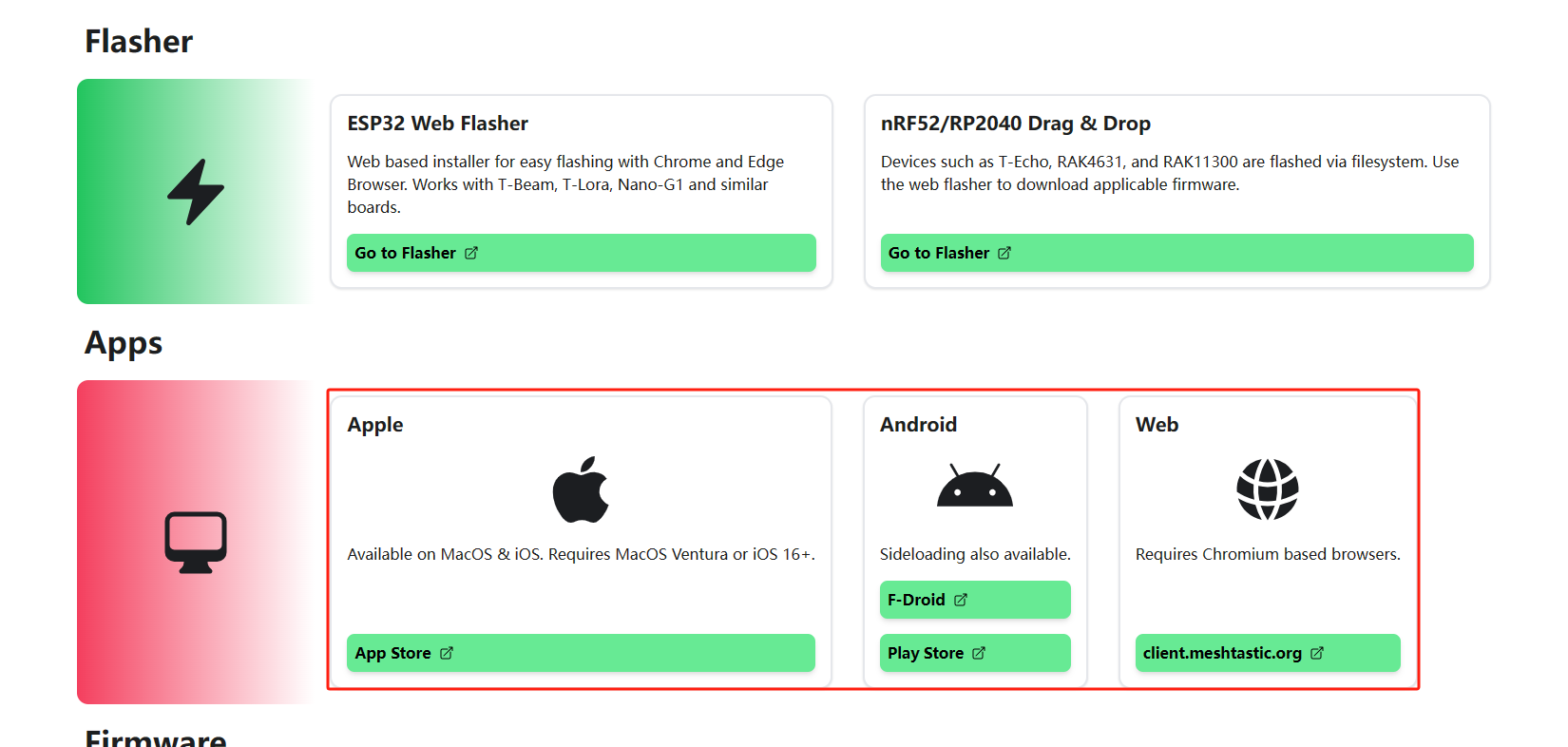
Meshtastic APP, How to download it please refer to this link: Downloads | Meshtastic
Power On
Hold the button for 3 seconds until the white light comes on, Release the button.
Opreting Meshtastic
- Open the APP, click
+to find your device.
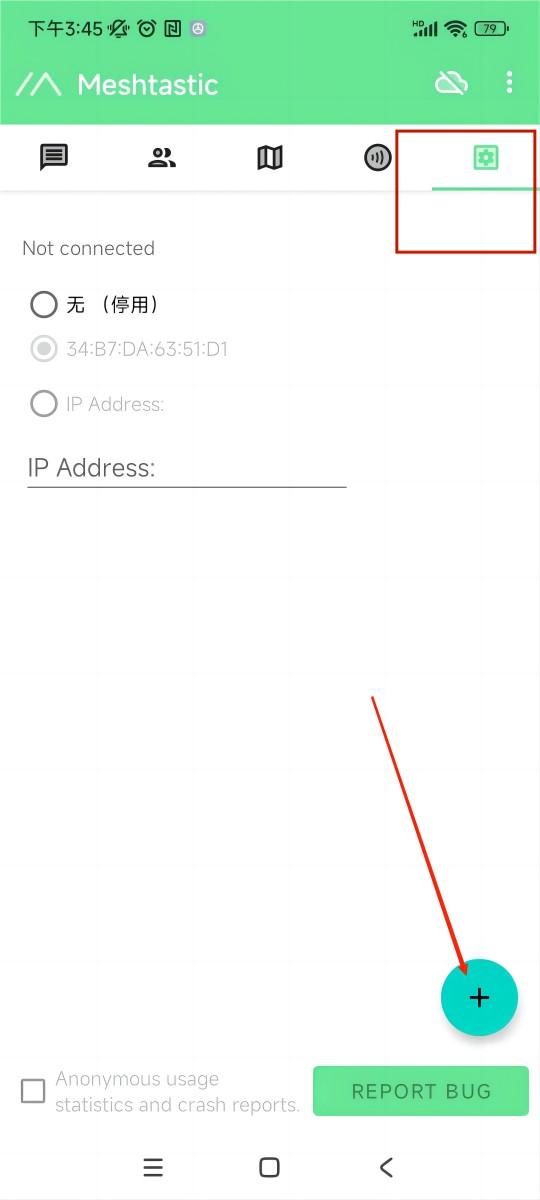
- Connect the device.
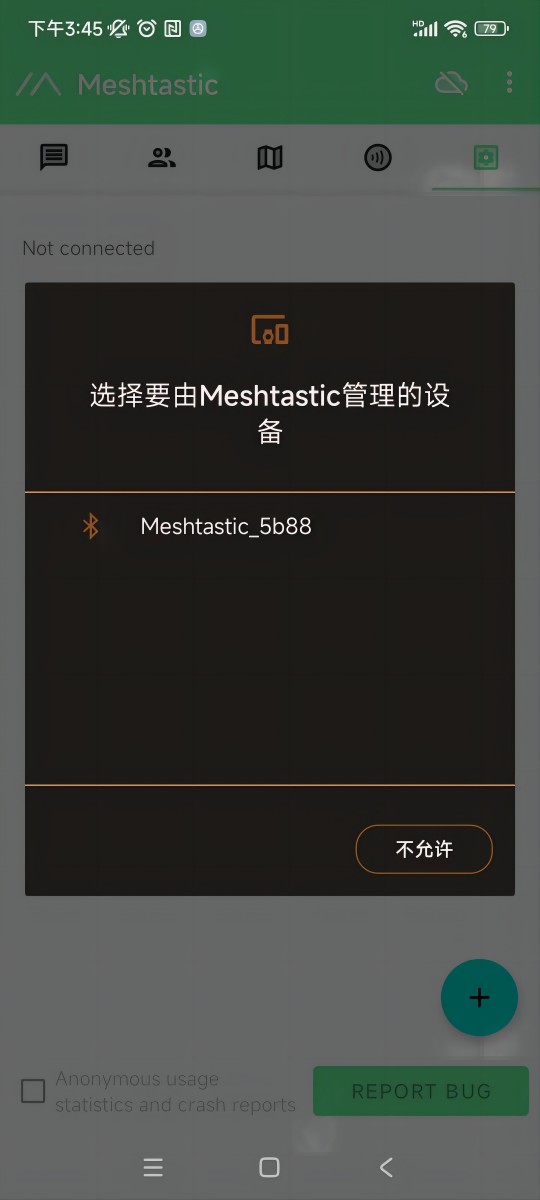
- Default password: 123456
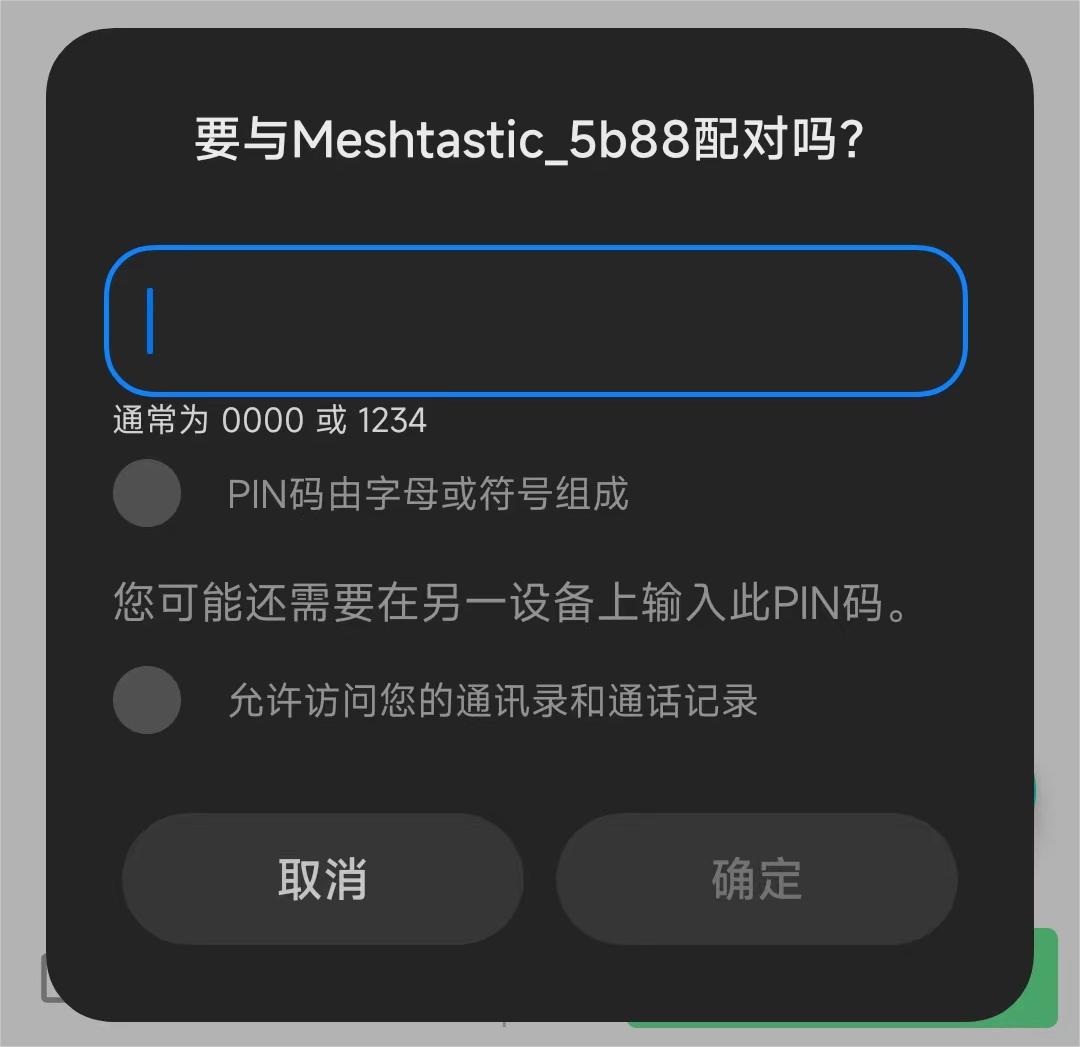
- Once paired, Click
UNSETnext to the device name. Select the region from the list according to your regional location. Of course, your hardware must support this frequency band.
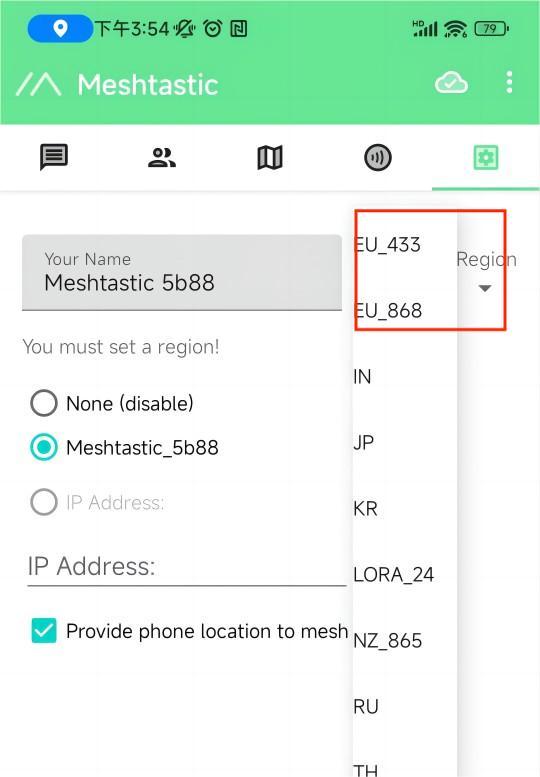
You can refer to this link for the relationship between LoRaWAN bands and regions: LoRaWAN_frequency_plans_by_country
EU_433 and EU_868 have to adhere to an hourly duty cycle limitation of 10%. Your device will stop transmitting if you reach it, until it is allowed again
- Click the option below to select the channel you want to join.
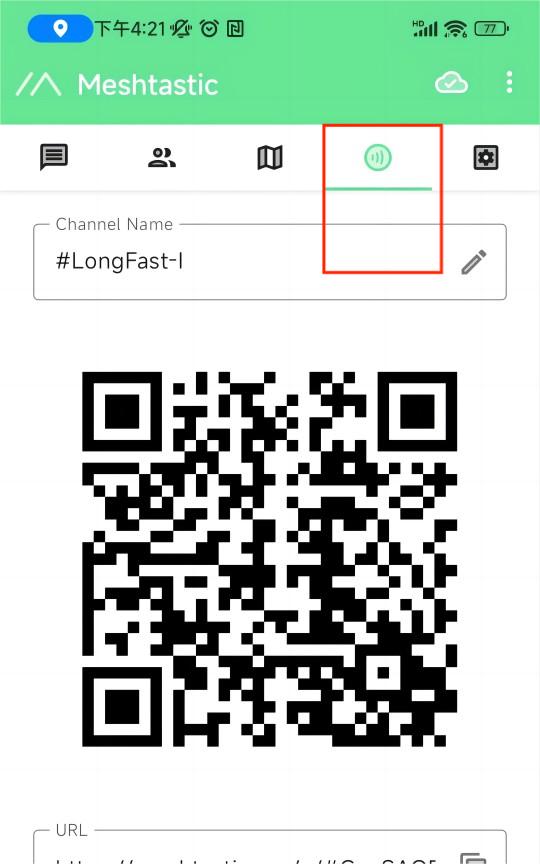
Main Options
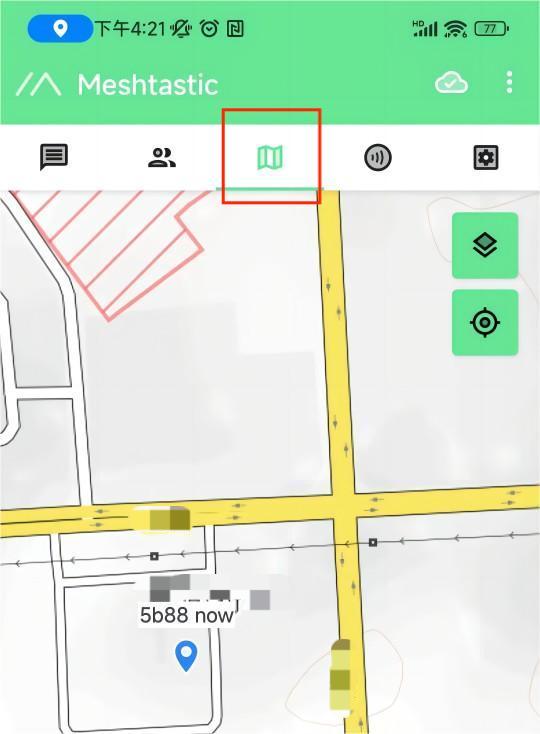
- The map option will be able to view the location information of the companion, which can be provided by the GPS module on the device, or by the phone to which the device is connected.
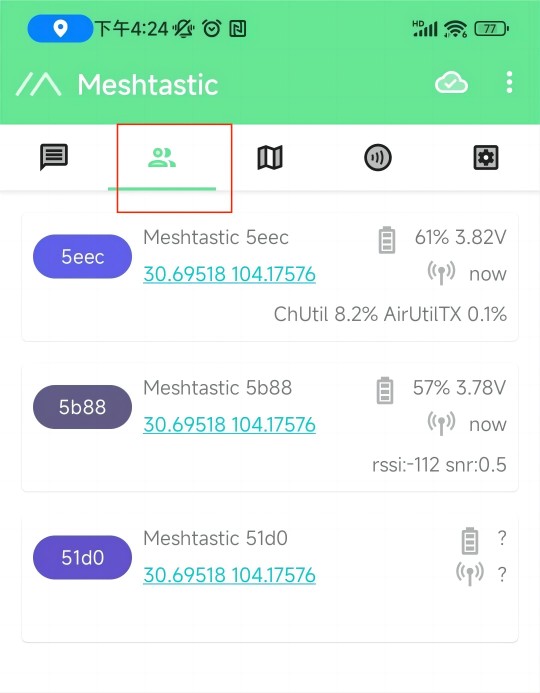
- The options below show some information about the companion device, such as latitude and longitude, signal strength, battery level, and so on.
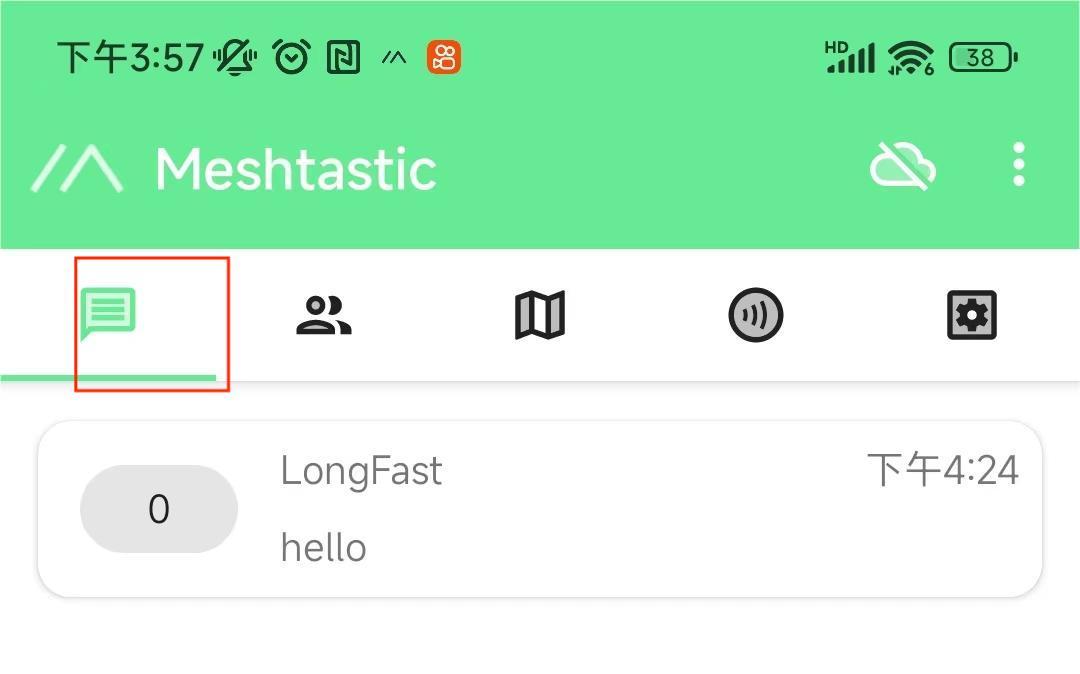
- This is where you'll see the messages you want to send and receive, and they'll be displayed on the device screen.
More Settings and usage
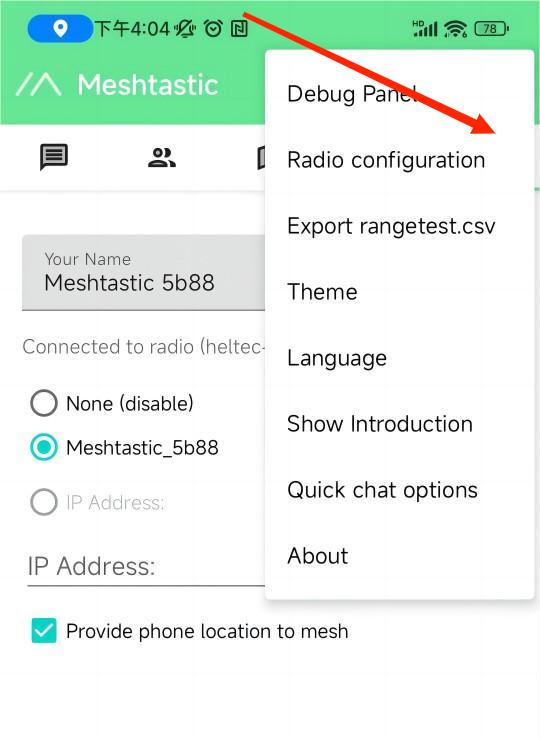
Click the top right button to see more configurable options.
Power Off
Long press the button for 3 seconds to turn off the phone, the light turns blue, and then goes out.
Charging
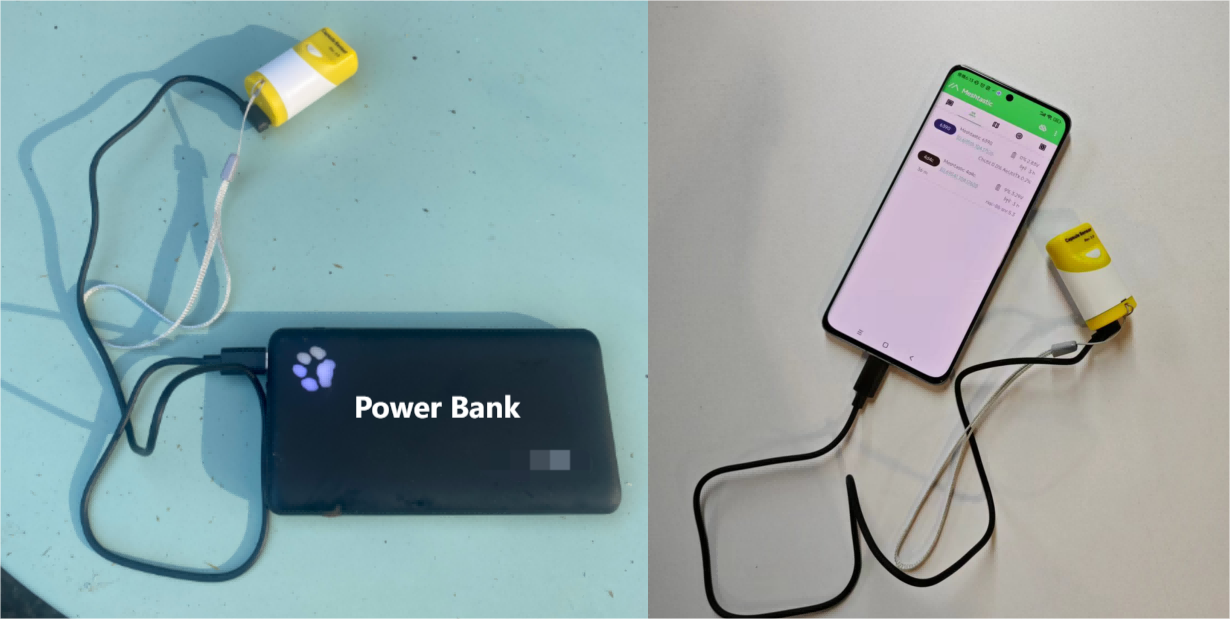
The charging interface is shown in the following figure.
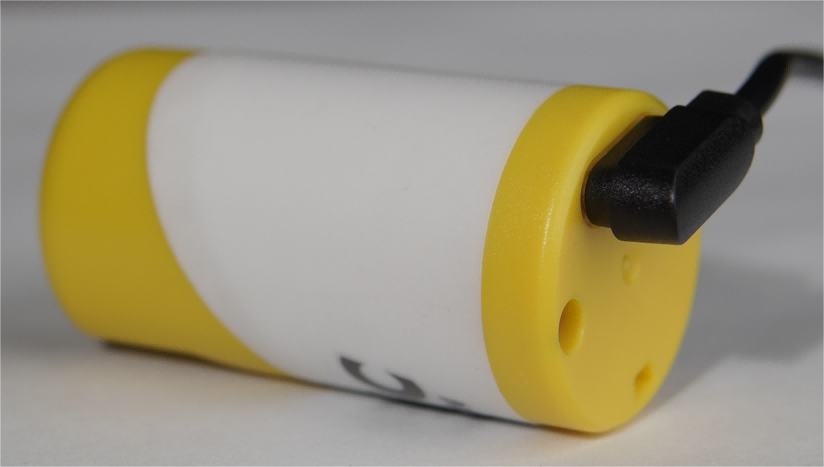
The charging voltage is 4~6V, which can be used for mobile phone charging.